
Table Management and Split Bill
The Tables module in NAOS gives you full visual control of your dining floor in real time.
🗺️ The Table Map
When you open the Restaurant module, you will see your floor plan displayed graphically:
- 🟢 Green (Available): Table is open for new customers.
- 🔴 Red (Occupied): Table has an active order. Shows the elapsed time since it was opened.
- 🟡 Yellow (Pre-Check): The bill has been printed but payment has not yet been recorded.
- 🔵 Blue (Reserved): Table is blocked for a future reservation.


🍽️ Service Cycle
1. Opening a Table
Tap an available table and enter the number of guests. This will open the sales cart linked to that table.
2. Taking Orders and Sending to Kitchen
- Add dishes and beverages to the cart.
- Add specific notes (e.g., “No salt”, “Medium rare”).
- Press the “Send Order” button (bell icon 🔔).
- The system will automatically print tickets at the corresponding stations (Kitchen, Bar, etc.).

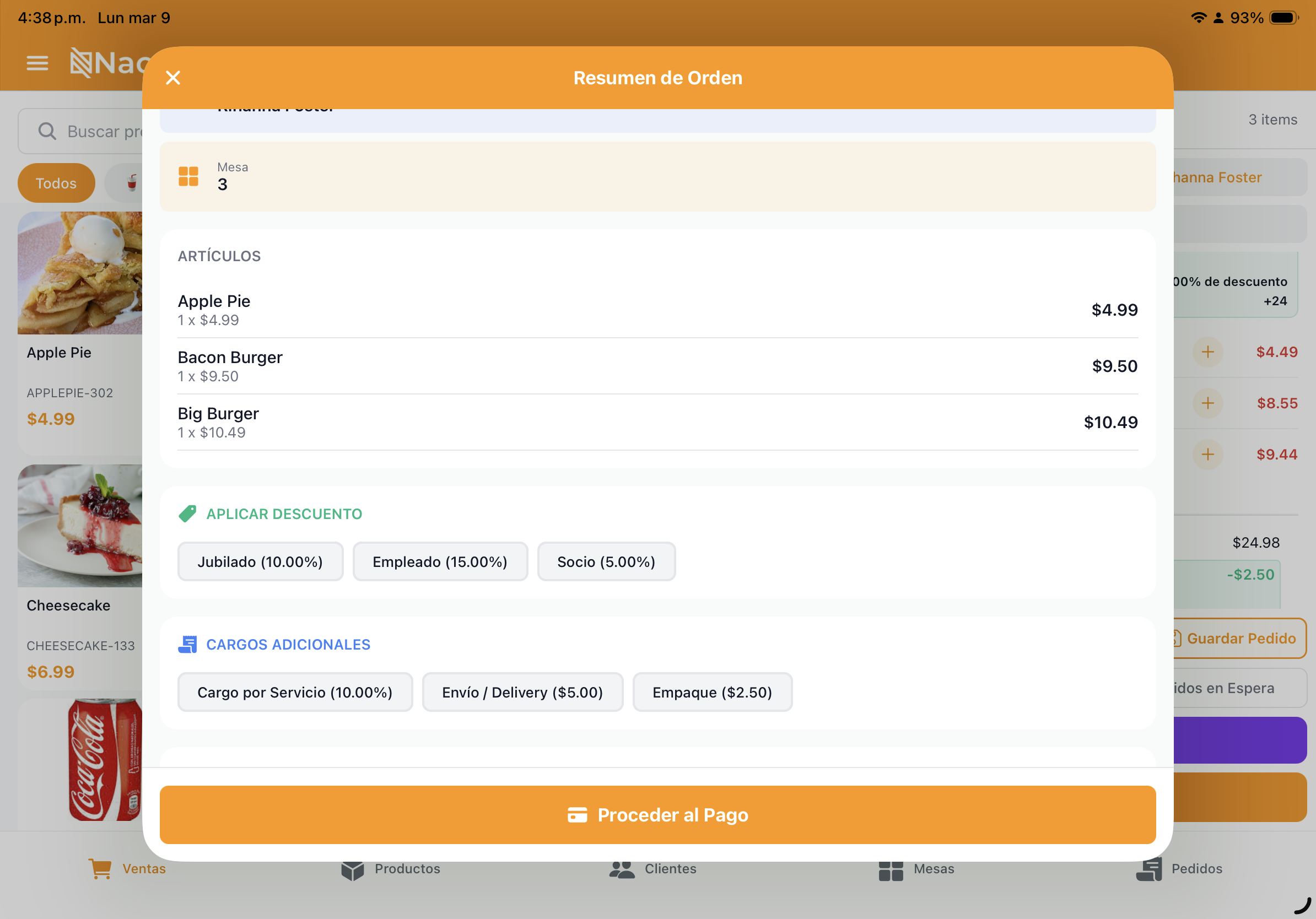
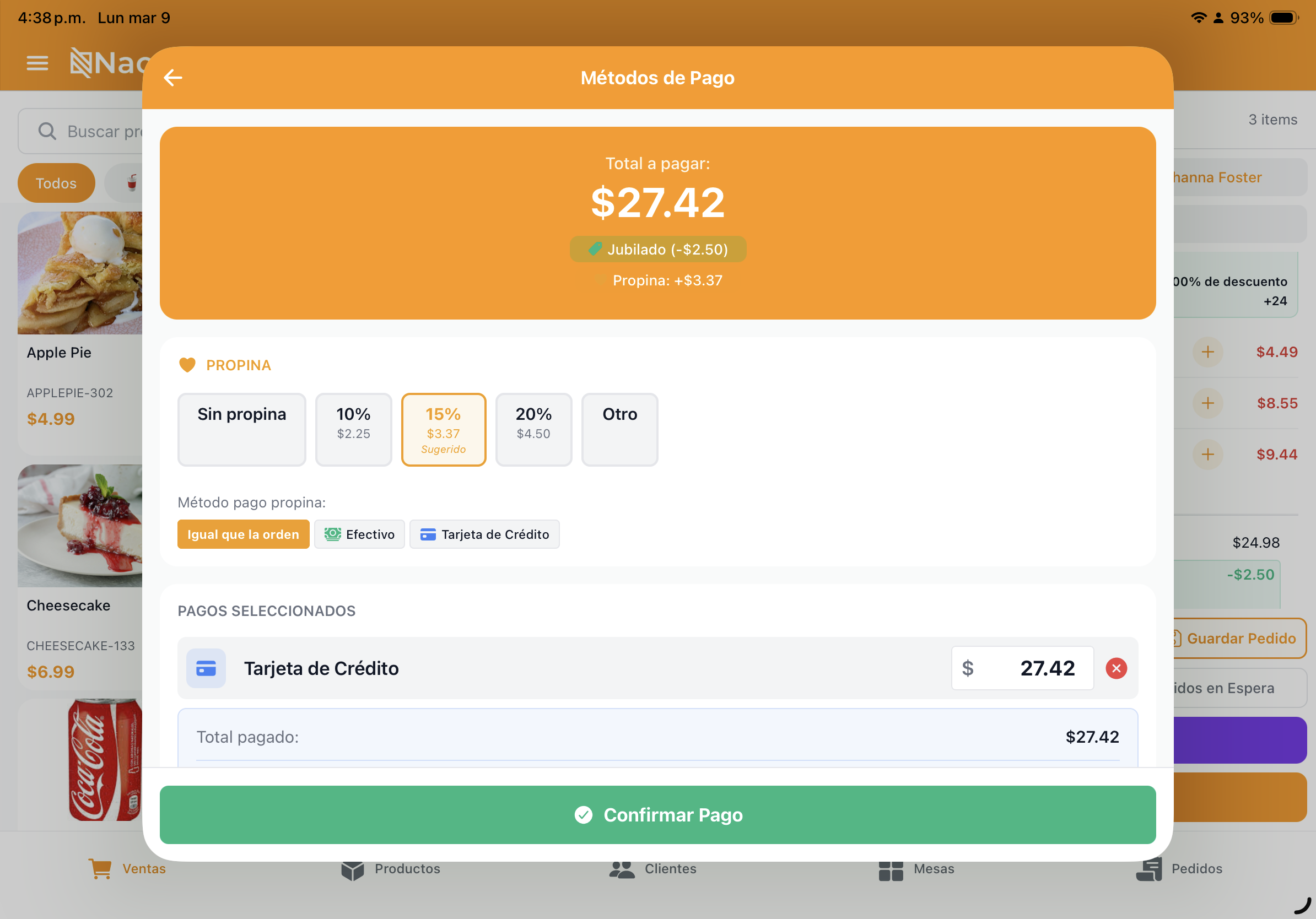
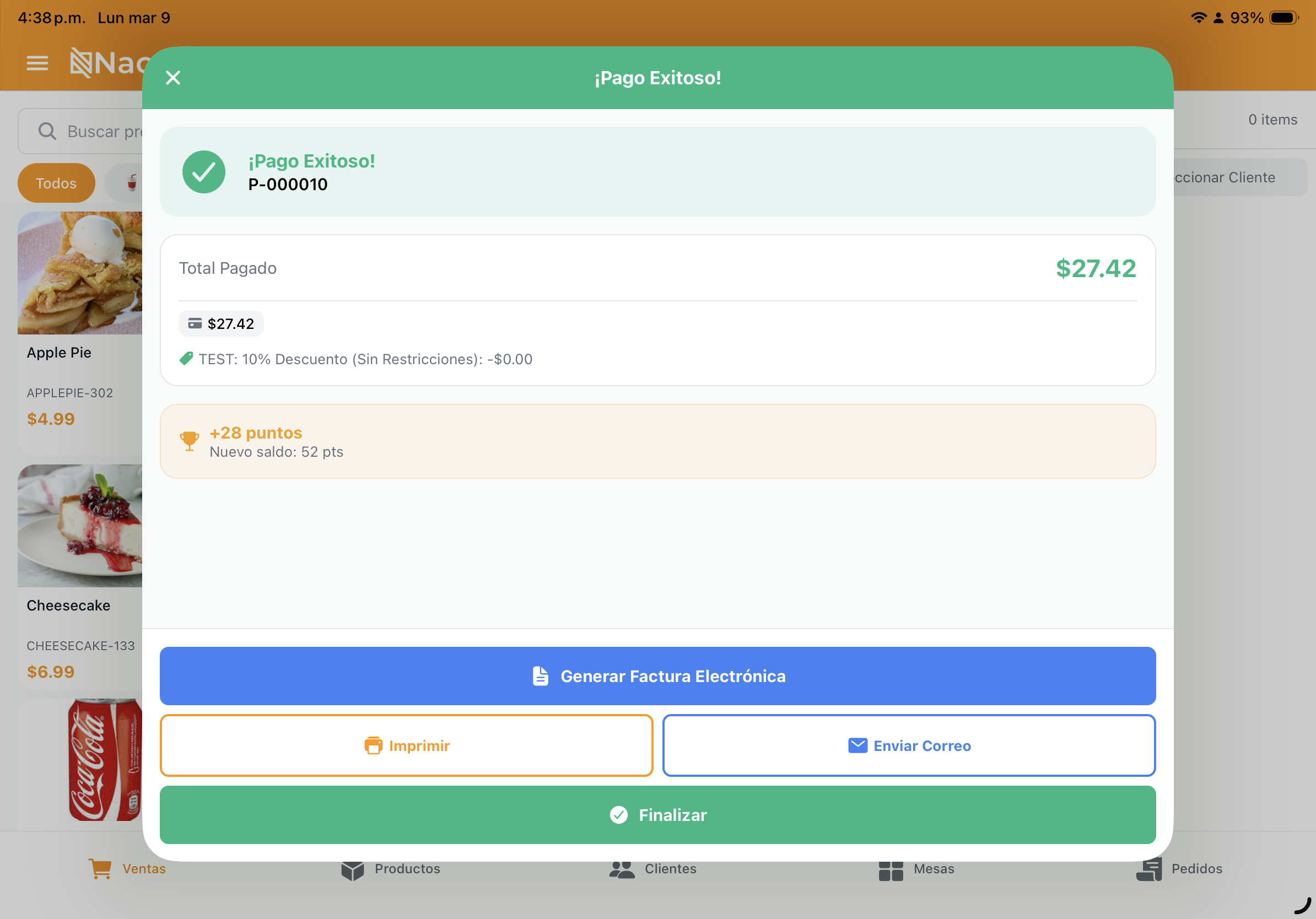
3. Special Actions
- Move Table: If a customer changes seats, use the “Move Table” option to transfer the entire check to another available table.
- Merge Tables: For large groups, select multiple tables and merge them into a single consolidated check.
✂️ Split Bill
NAOS offers three powerful ways to settle a shared table. Press the “Split Bill” button in the cart to see the available options:
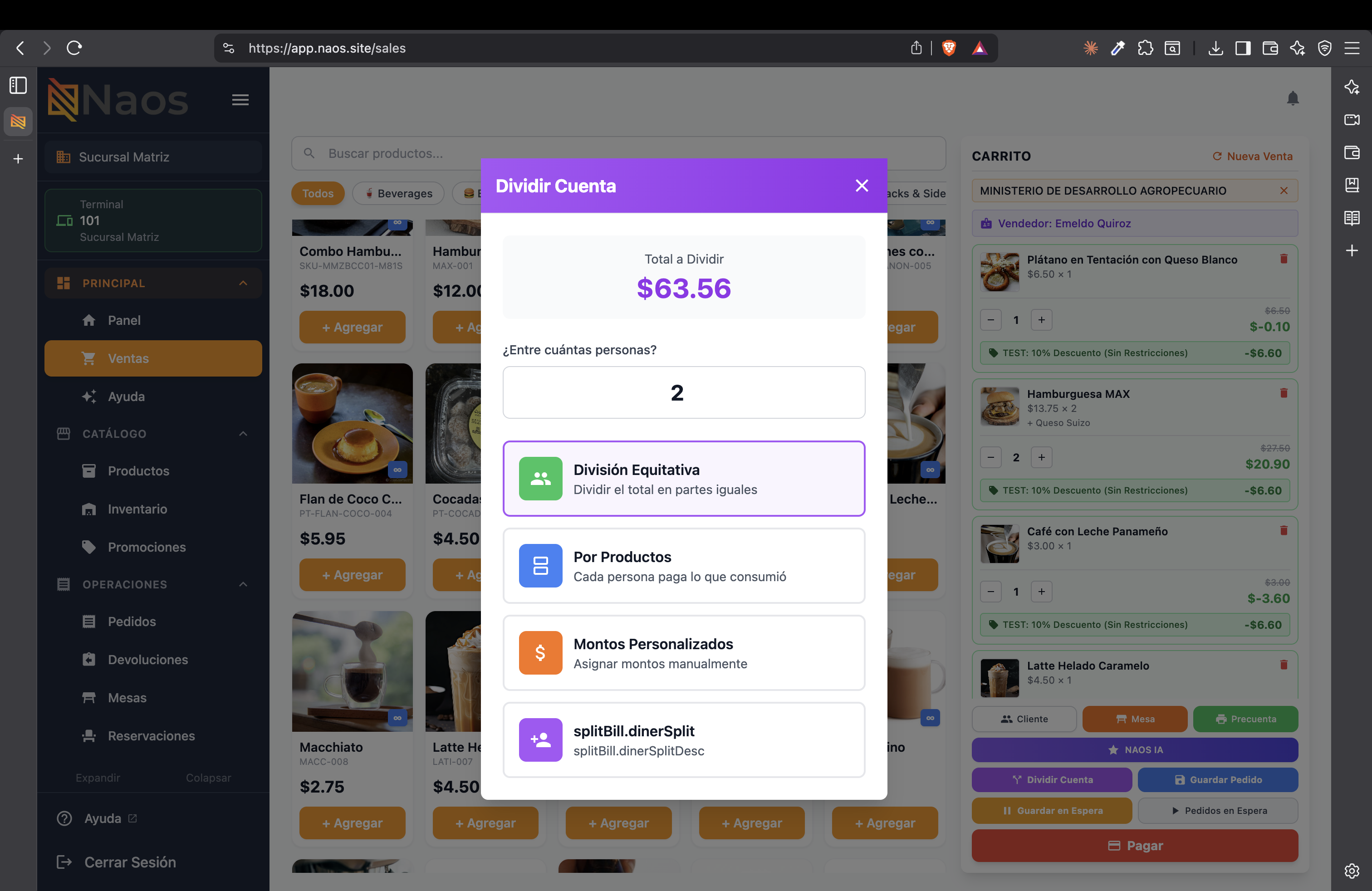
A. Even Split (Equal Parts)
Divides the total bill equally among the number of people.
- Example: A $63.56 check split among 2 people = $31.78 each.
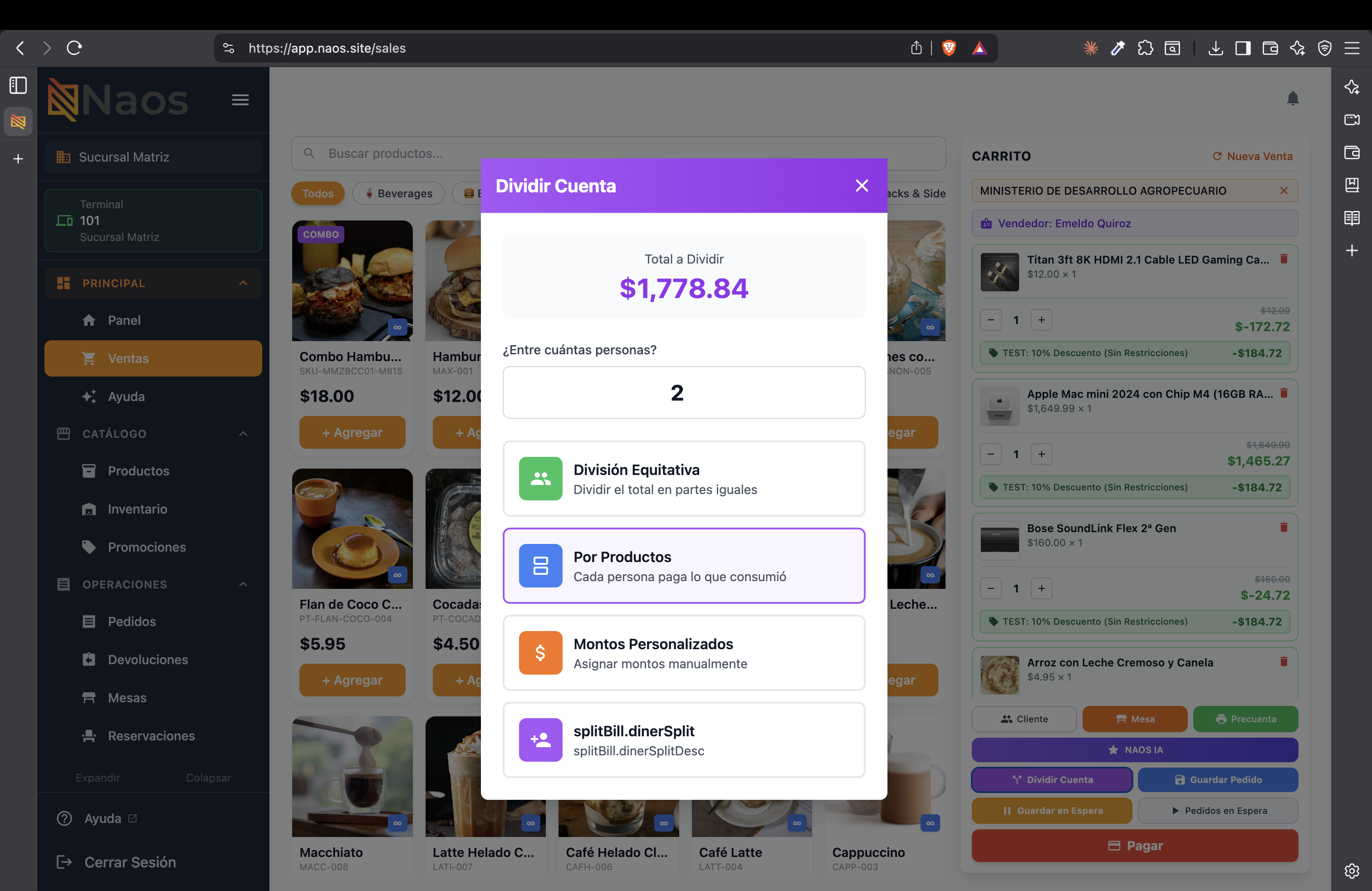
The system shows each share with its amount and allows printing individual pre-checks or all at once.
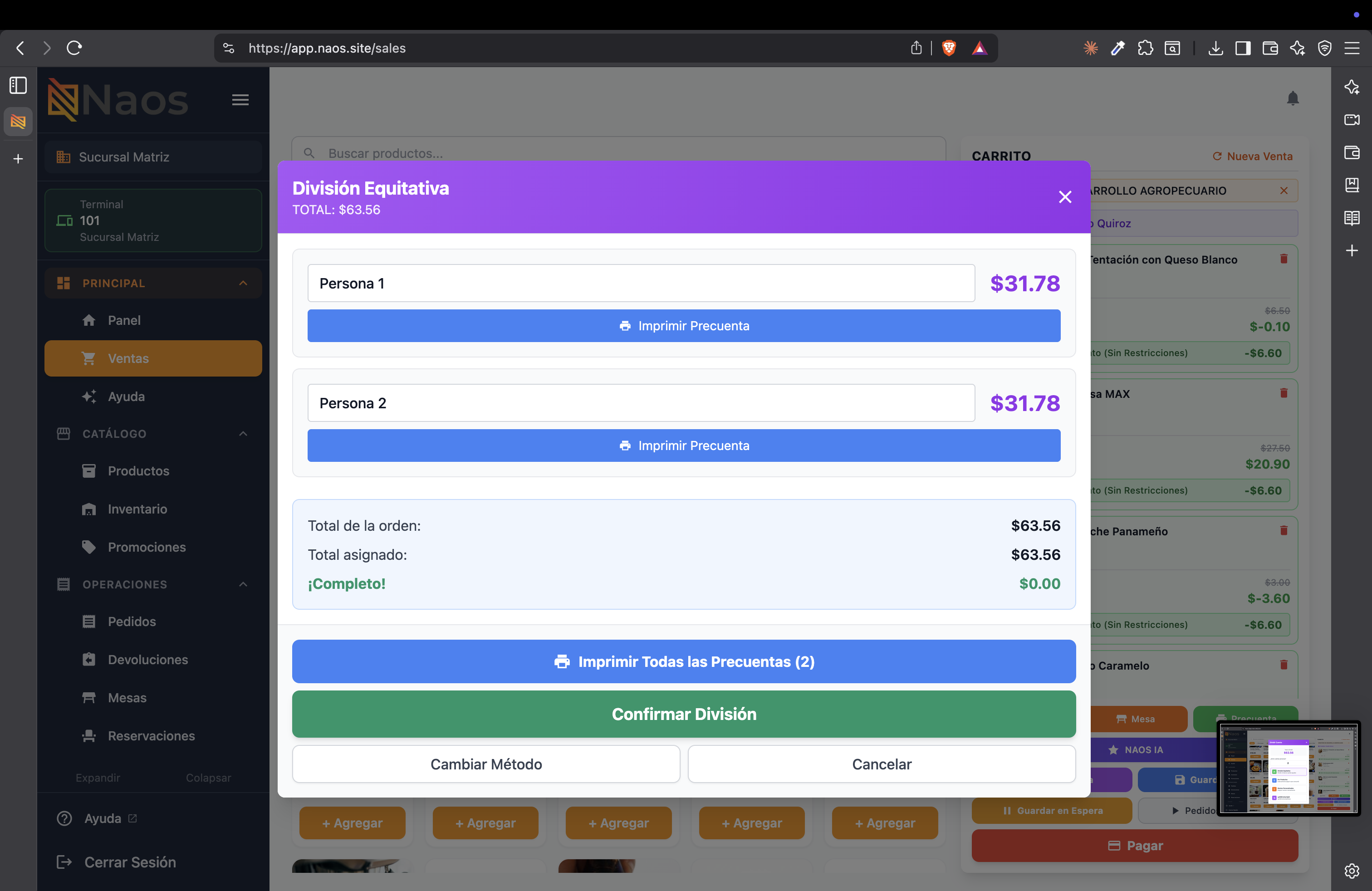
B. Split by Products (Who had what)
This is the most precise method:
- Select the available products and assign them to each person.
- Drag or add items to each diner’s bill.
- The system shows the assigned total vs. the remaining balance in real time.
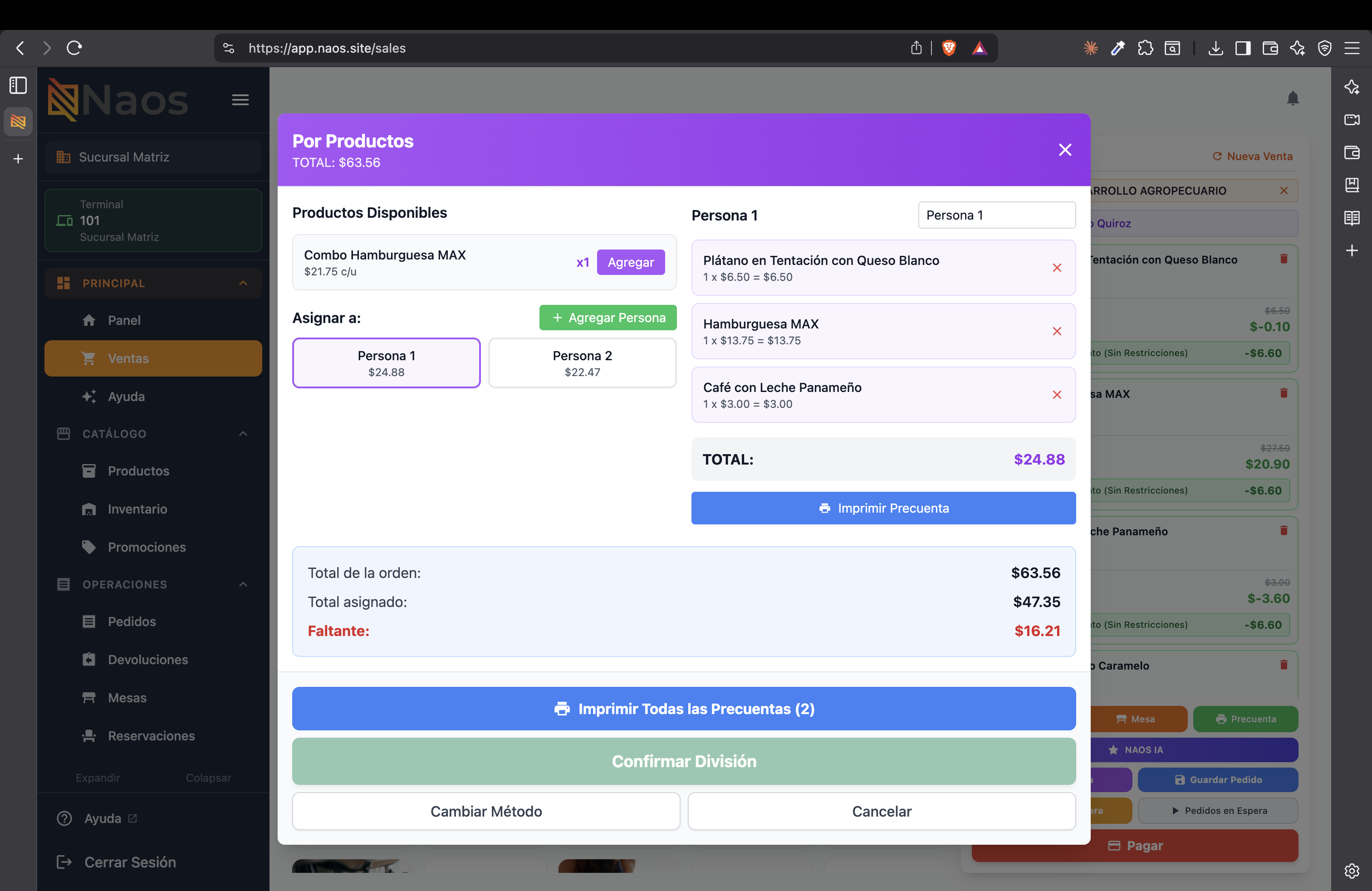
C. Custom Amounts
Each person pays a specific amount you define manually. The system automatically calculates the remaining balance.
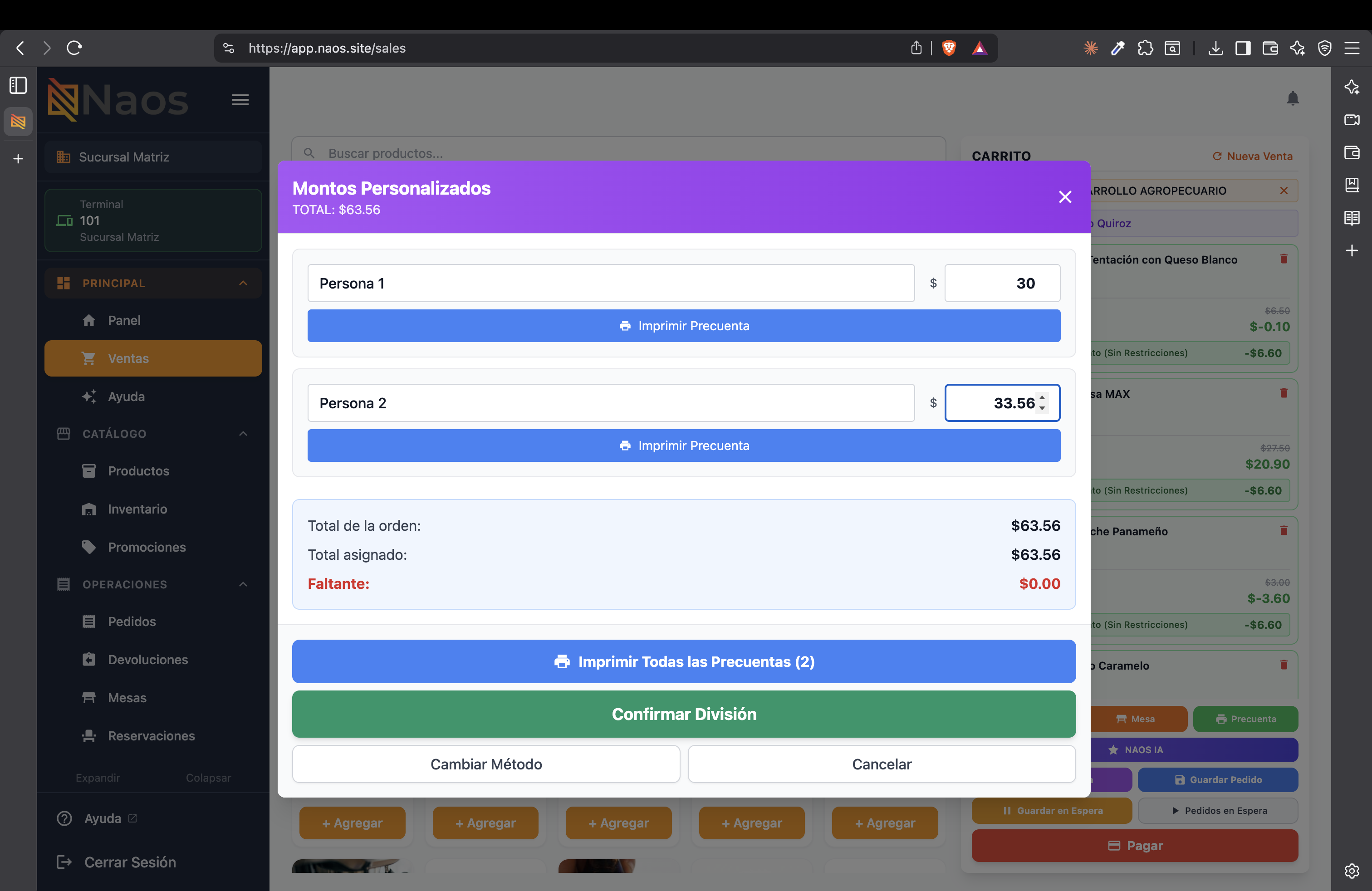
In all methods you can:
- Print Pre-Check individually per person.
- Print All Pre-Checks at once.
- Change Method to switch to a different split type.
- Confirm Split when everything is assigned.
🧾 Pre-Check Printing
Before collecting payment, you can print a Pre-Check ticket. This ticket:
- Is not a fiscal document (it is informational only for the customer).
- Shows the full consumption details and taxes.
- Includes a suggested space for the Tip (voluntary).
💡 Tips for Servers
- Quick Kitchen Notes: Set up predefined “tags” (e.g., “Gluten-Free”, “Rush”) so you don’t have to type them manually each time.
- Reprint Order Ticket: If the kitchen lost the ticket, you can resend it from the table’s history.
- Closing a Table: A table will not be freed until the balance is $0.00 and the electronic invoice has been generated.
Need help with print destinations? Printer Setup