
Mobile POS App - Introduction
The NAOS POS App is the mobile application that turns your Android tablet or phone into a full point of sale. It works offline, syncs automatically, and supports receipt printing.
Requirements
- Device: Android 10+ tablet or phone.
- Storage: At least 200 MB available.
- Connection: WiFi recommended (works without internet in offline mode).
- Optional: ESC/POS thermal printer (Bluetooth, WiFi, or USB).
First Launch
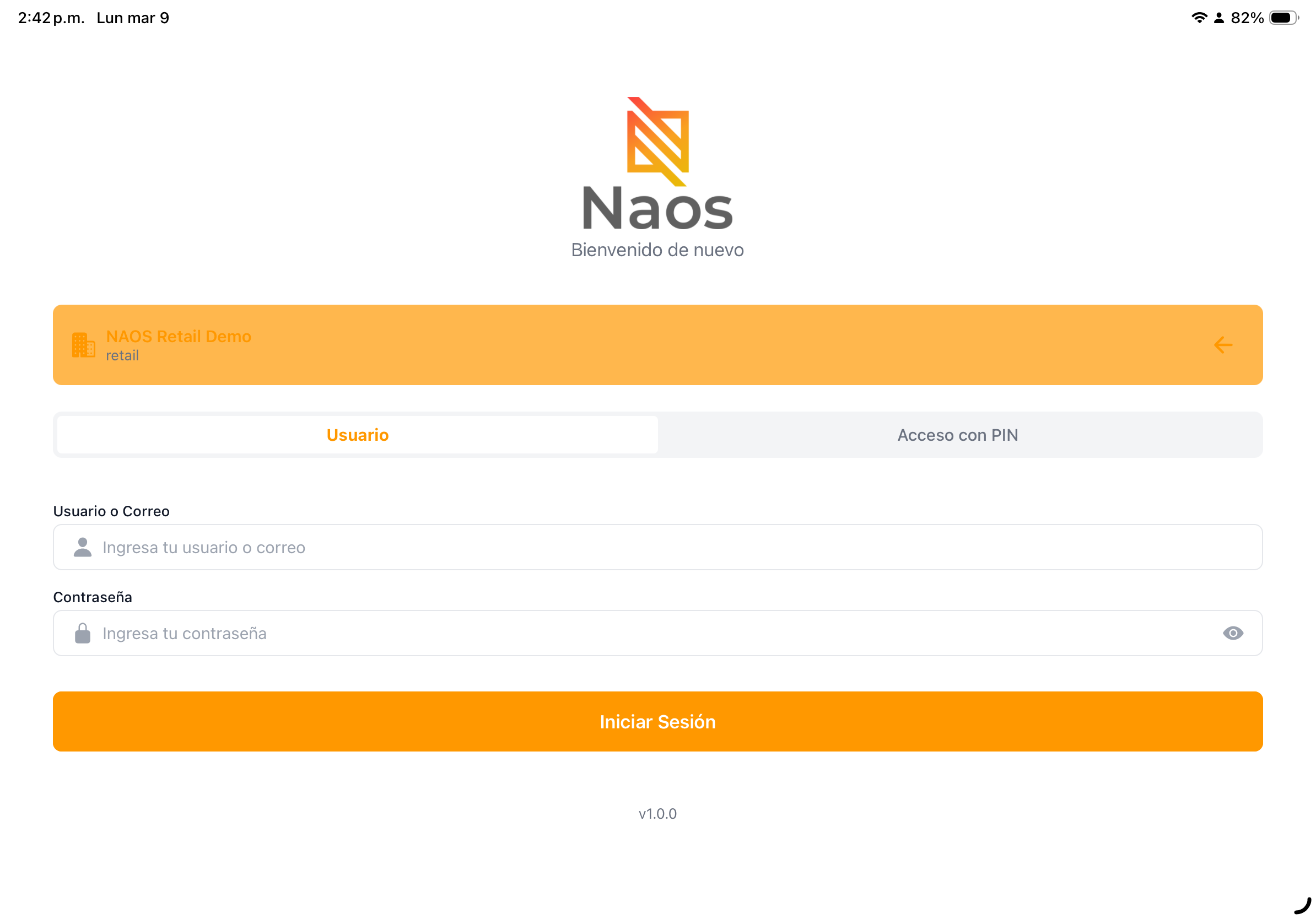
1. Sign In
- Open the NAOS POS app.
- Enter your business slug (e.g., “myrestaurant”).
- Enter your email and password.
- The app will download initial data (products, customers, settings).



2. Register Terminal
On first launch, the app registers itself as a terminal:
- A unique device ID is assigned.
- It is linked to the branch configured for your user.
- The initial invoice numbering sequence is set.


3. Set Up Printer
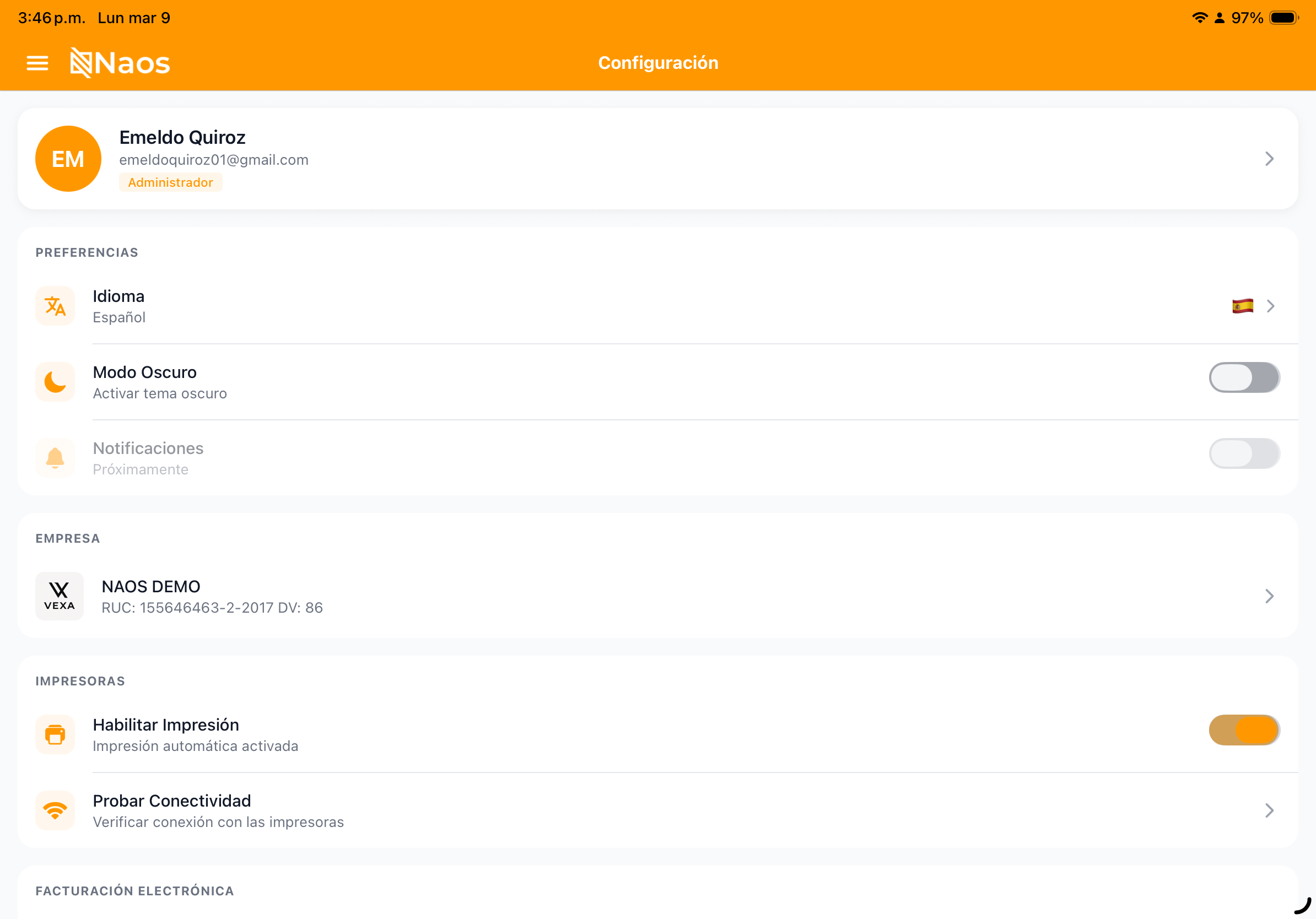
Go to Settings > Printers to configure your thermal printer. See printer setup guide
4. Digital Certificate (DGI)
If you issue electronic invoices, set up the P12 certificate. See certificate guide
Main Screens
The app has a bottom bar with the main screens and a side menu for additional features.
Bottom Bar (Tabs)
| Tab | Function |
|---|---|
| Sales | Main point-of-sale screen |
| Products | Product catalog by category |
| Customers | Customer management |
| Tables | Table map (Restaurant mode only) |
| Orders | Order history |
Side Menu (Drawer)
| Section | Features |
|---|---|
| Home | Dashboard with daily KPIs |
| Operations | Quotes, Returns, Reservations |
| Catalog | Inventory Lookup, Purchase Entry, Promotions |
| Finance | Cash Register Closings, Reports |
| Administration | Printers, Electronic Invoices |
| My Account | Profile, Settings, Sign Out |

Dashboard
The dashboard displays a summary of the day:
- Daily sales (total amount).
- Number of orders.
- Average ticket.
- Breakdown by payment method.
- Quick actions for the most-used features.

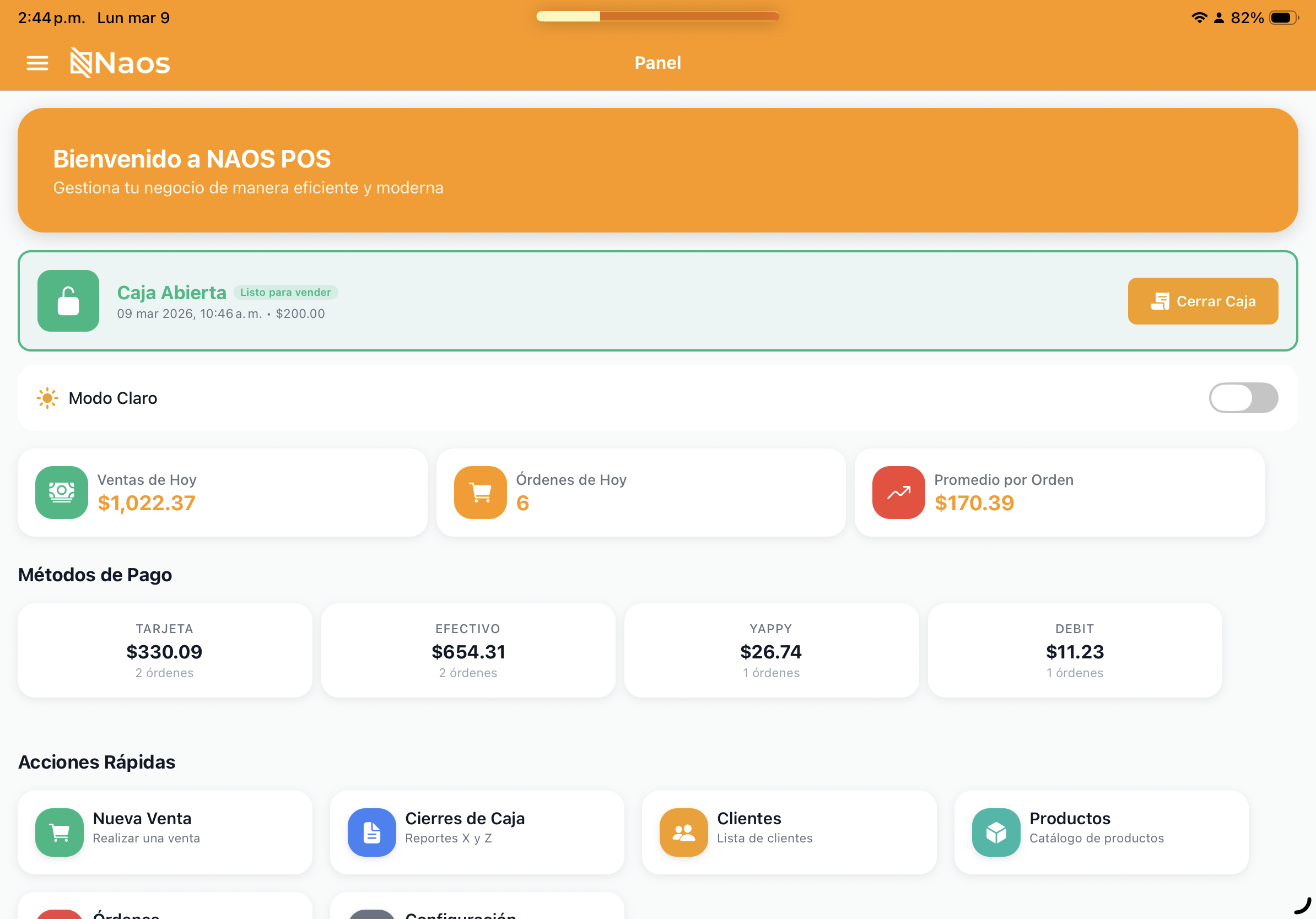

Dark Mode
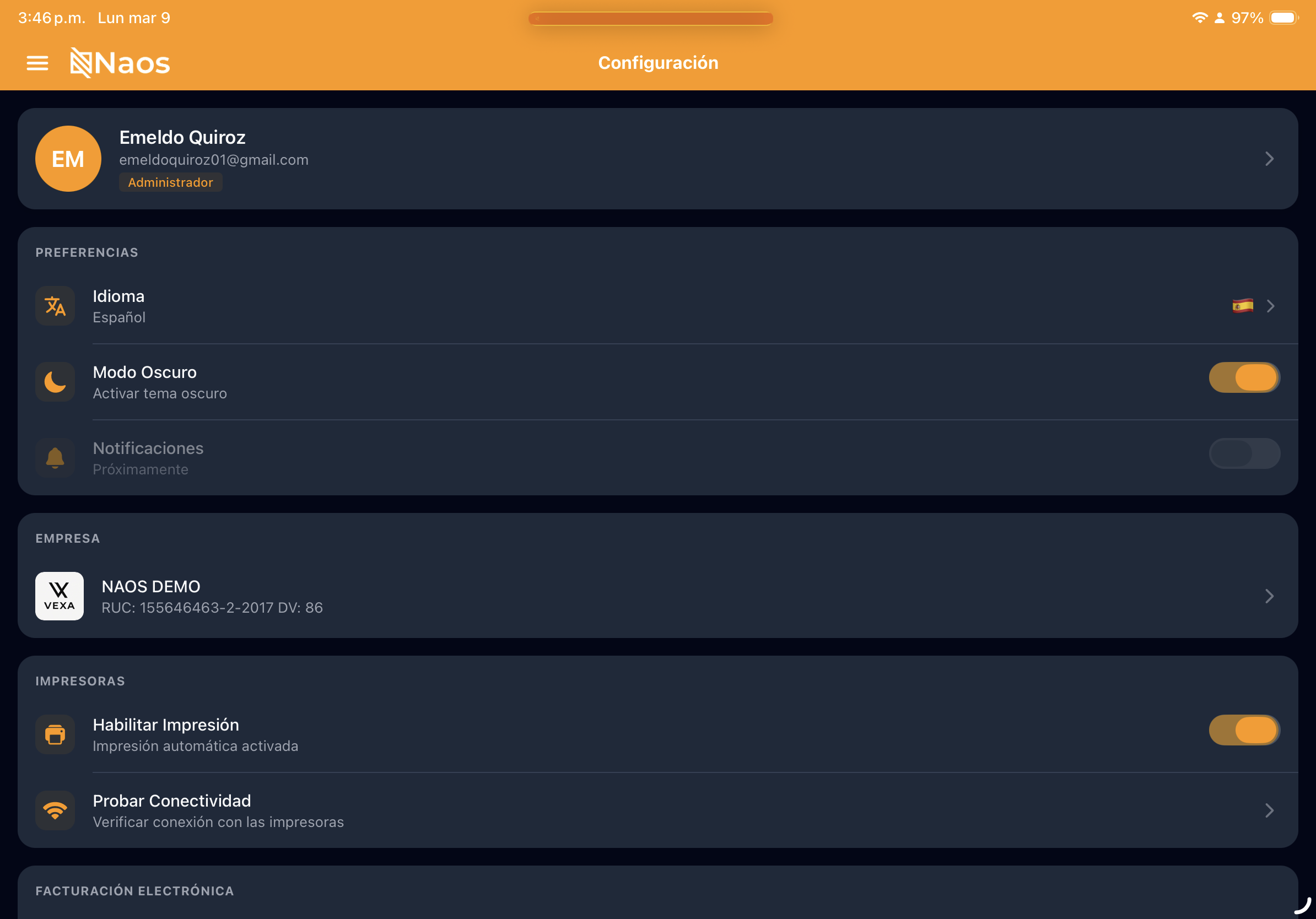
The app supports dark mode to reduce eye strain:
- Enable it from Settings or the toggle on the Dashboard.
- It applies across the entire interface.
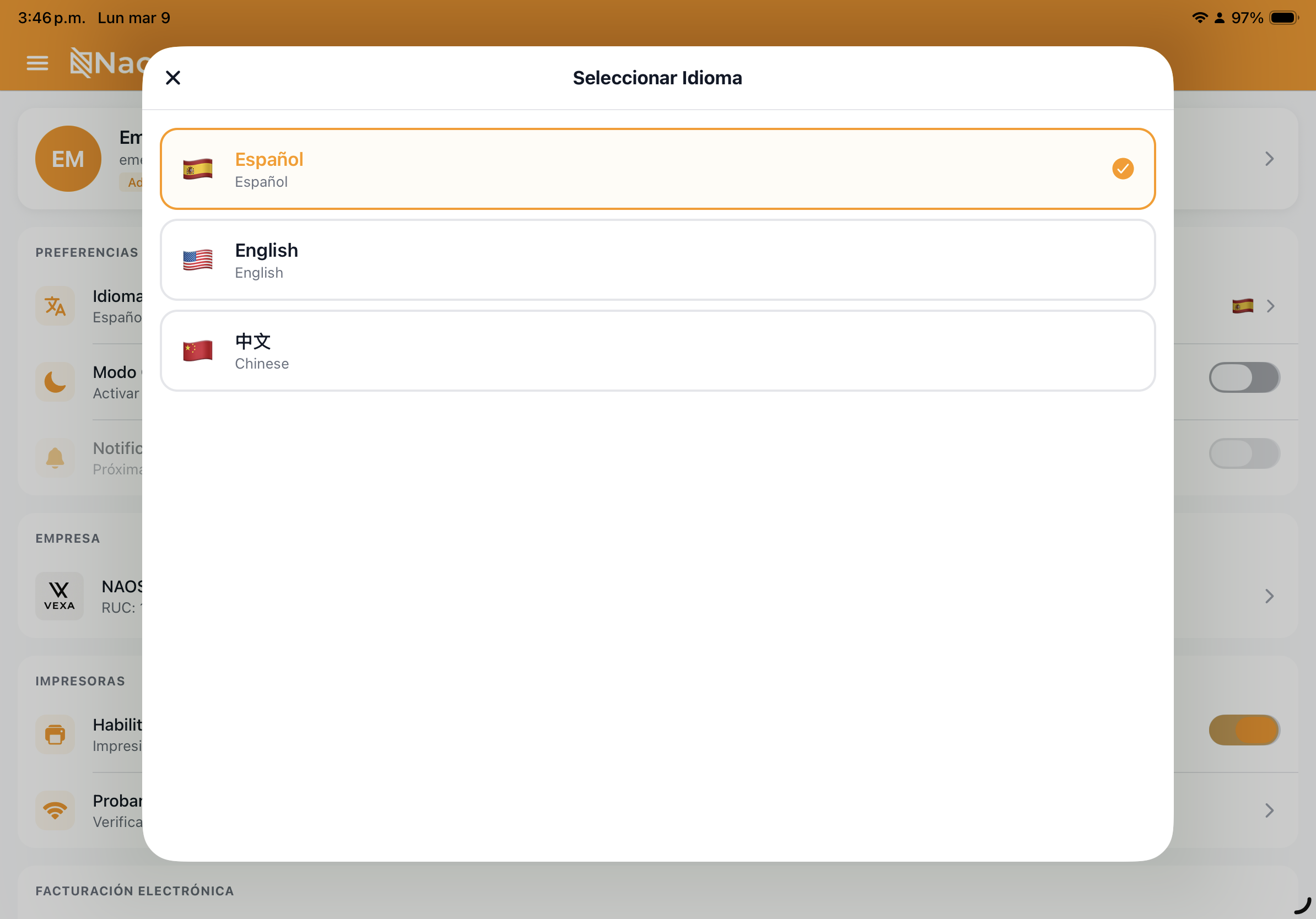
Languages
Available in three languages:
- Spanish (default)
- English
- Chinese (中文)
Change the language from Settings > Language.
Settings


Responsive Design
The app adapts to the device:
- Tablet (landscape): Split view with catalog and cart side by side.
- Tablet (portrait): Optimized vertical layout.
- Phone: Compact interface with simplified navigation.