
Quotes
The Quotes module lets you generate formal estimates for your customers, track their status, and convert them into sales once accepted.
Creating a Quote
From the Web Portal
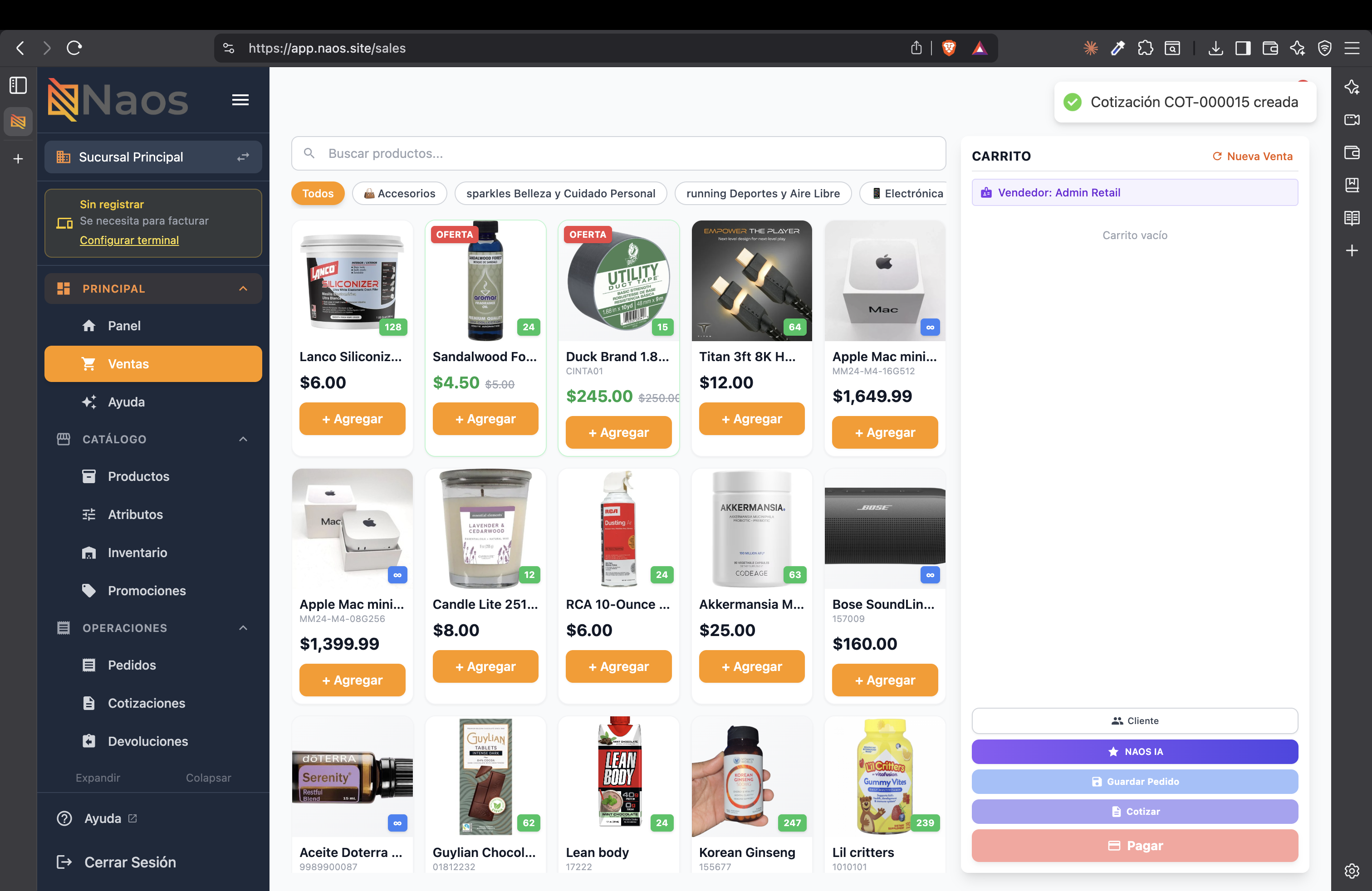
- Go to Sales in the side menu.
- Add products to the cart and assign a customer.
- Press the “Quote” button in the cart panel.
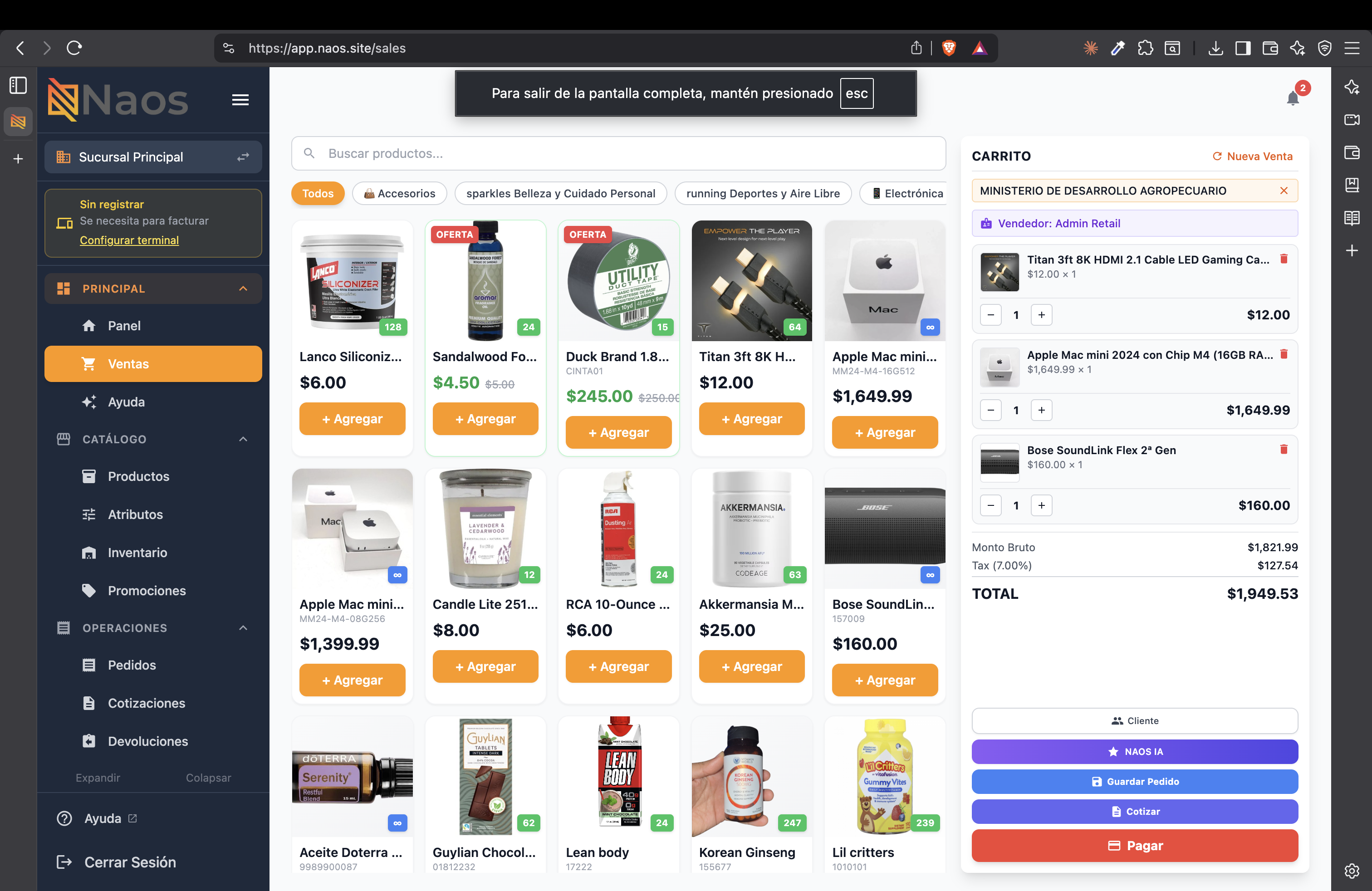
- The quote is created automatically and a confirmation appears.
From the Mobile App
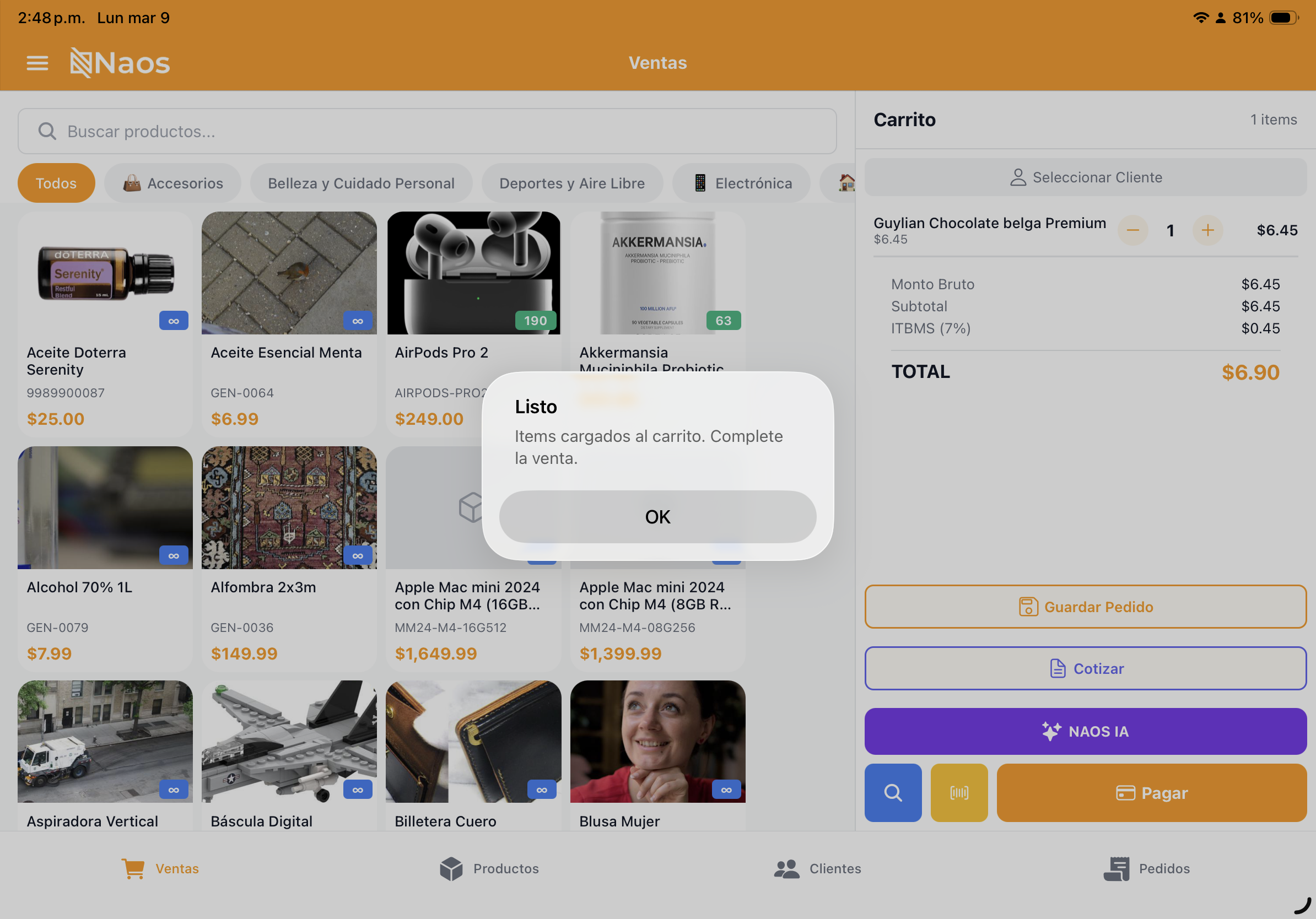
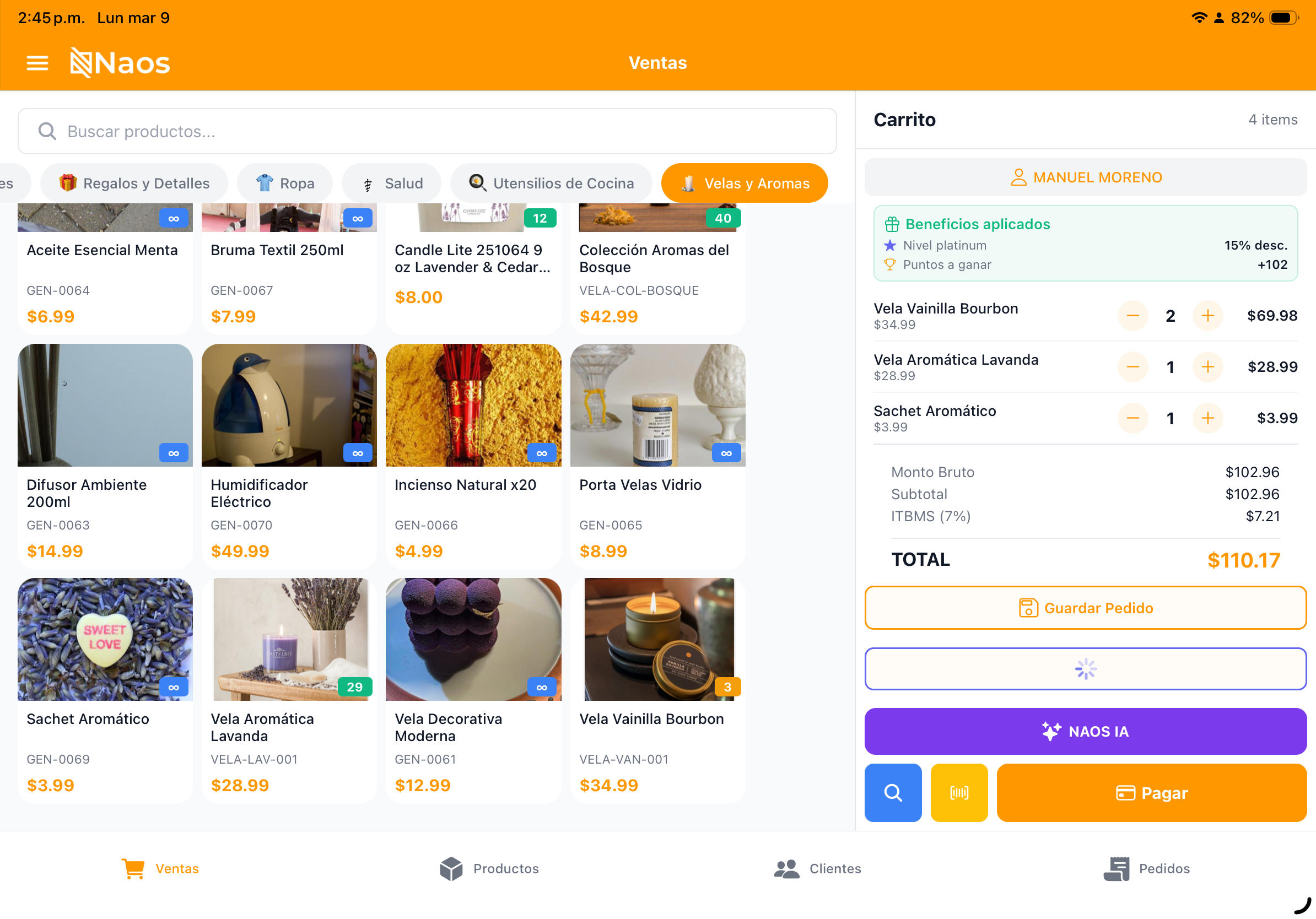
- Build your cart with the desired products.
- Instead of pressing “Pay”, select “Create Quote”.
- The quote is saved as a draft.
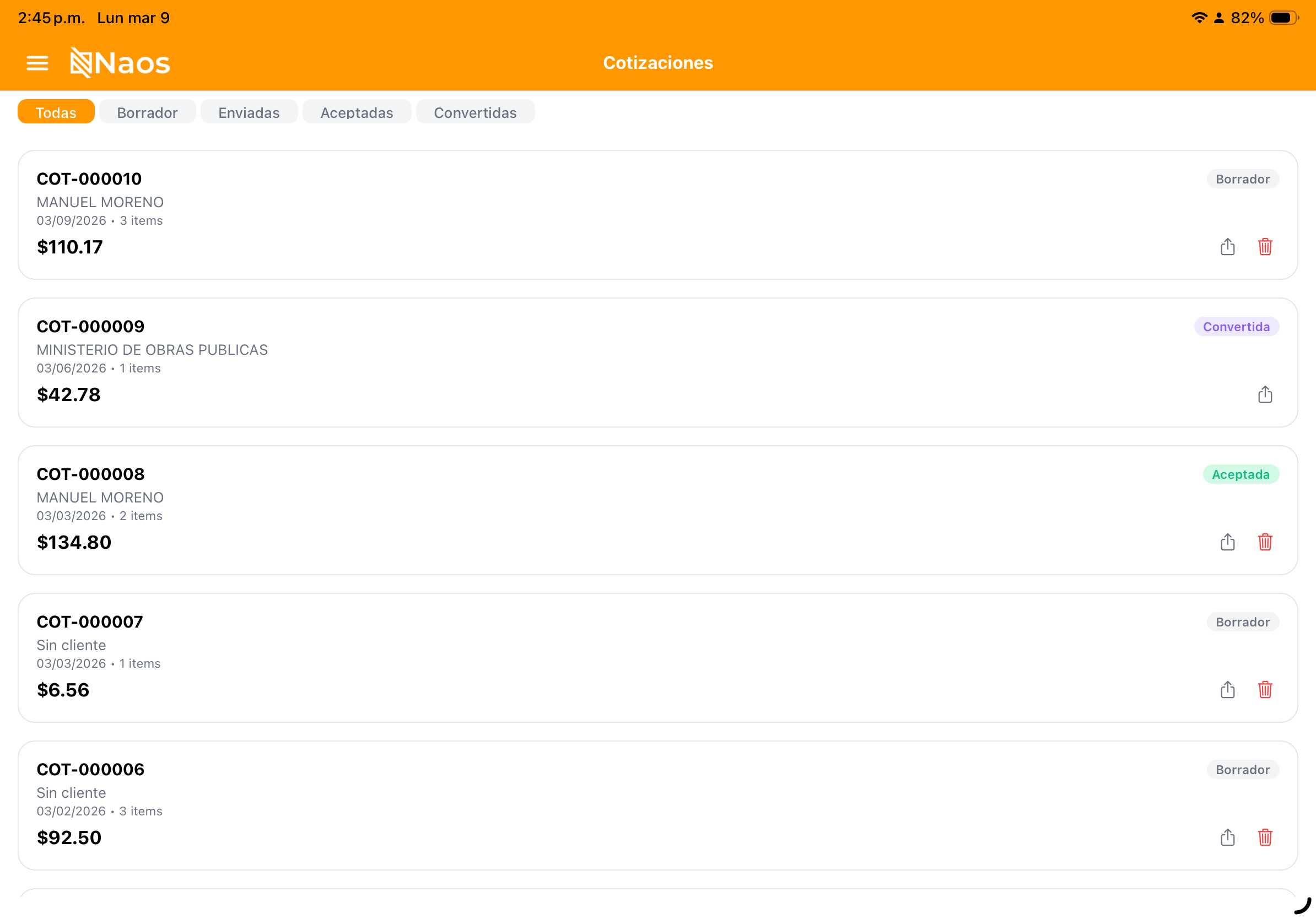
Quote Statuses
| Status | Description |
|---|---|
| Draft | Quote created but not yet sent to the customer |
| Sent | Emailed to the customer |
| Accepted | The customer accepted the quote |
| Converted | Converted into a sale/order |
| Expired | Expired without a customer response |
| Cancelled | Manually cancelled |
Quote Detail
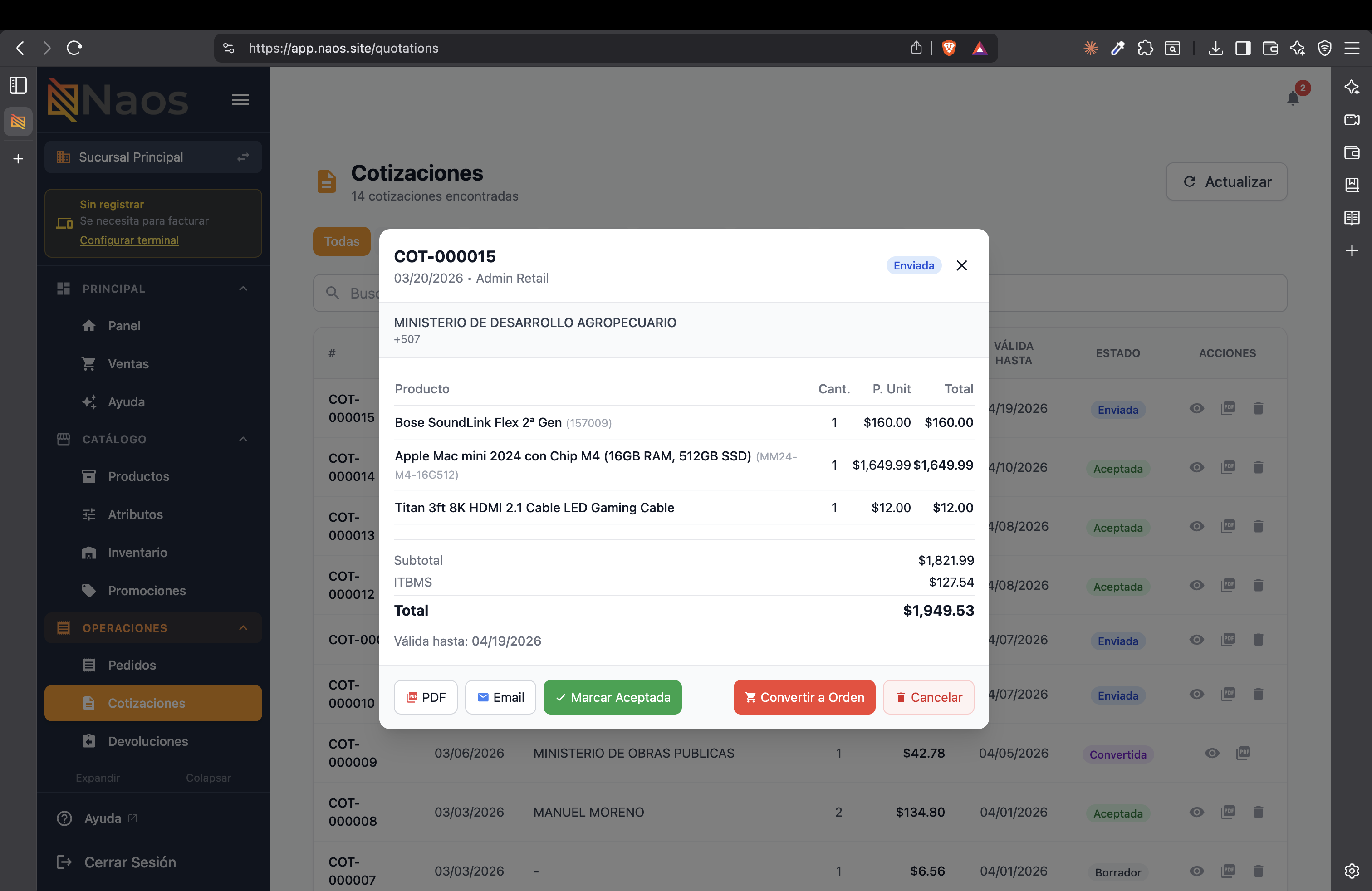
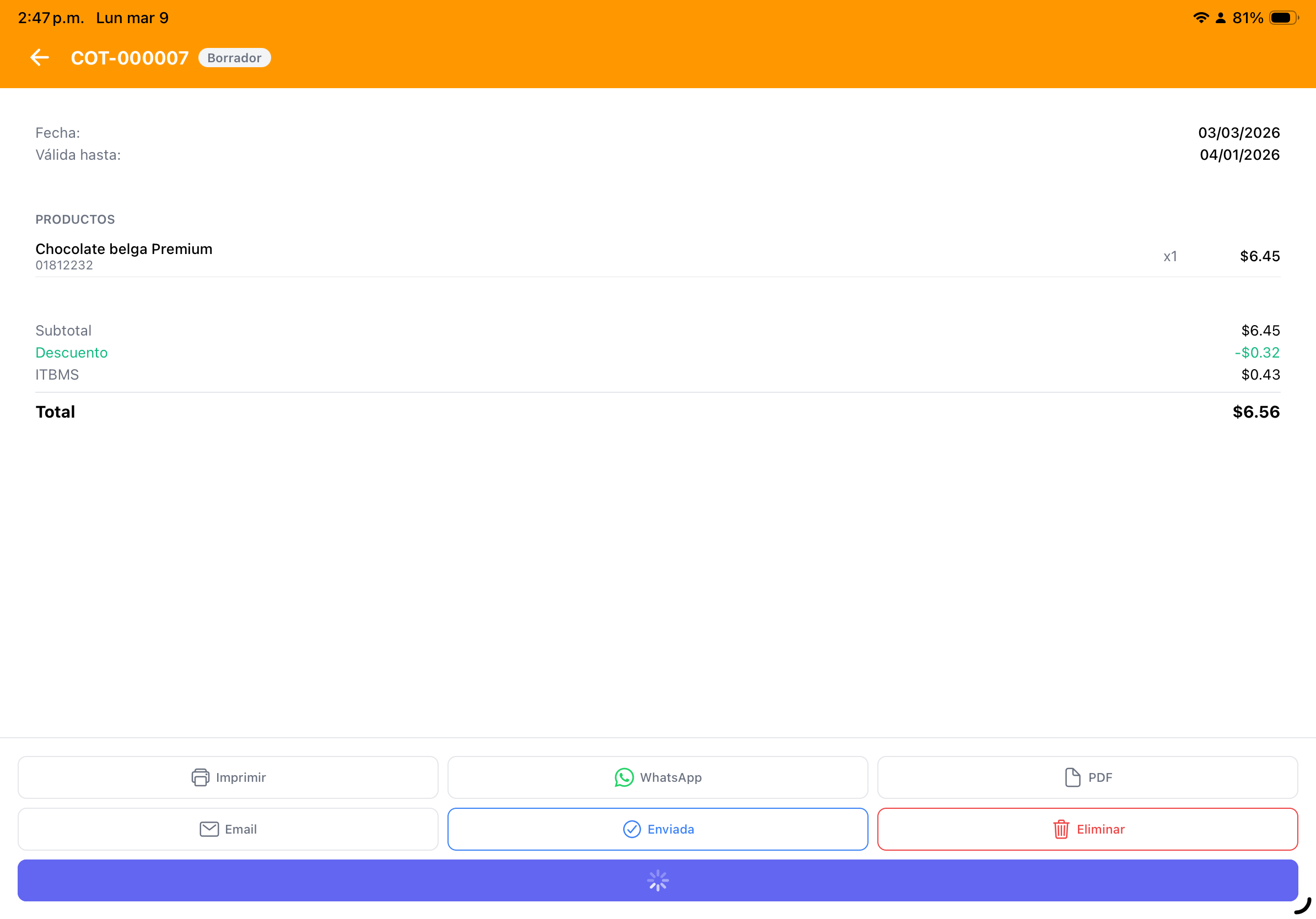
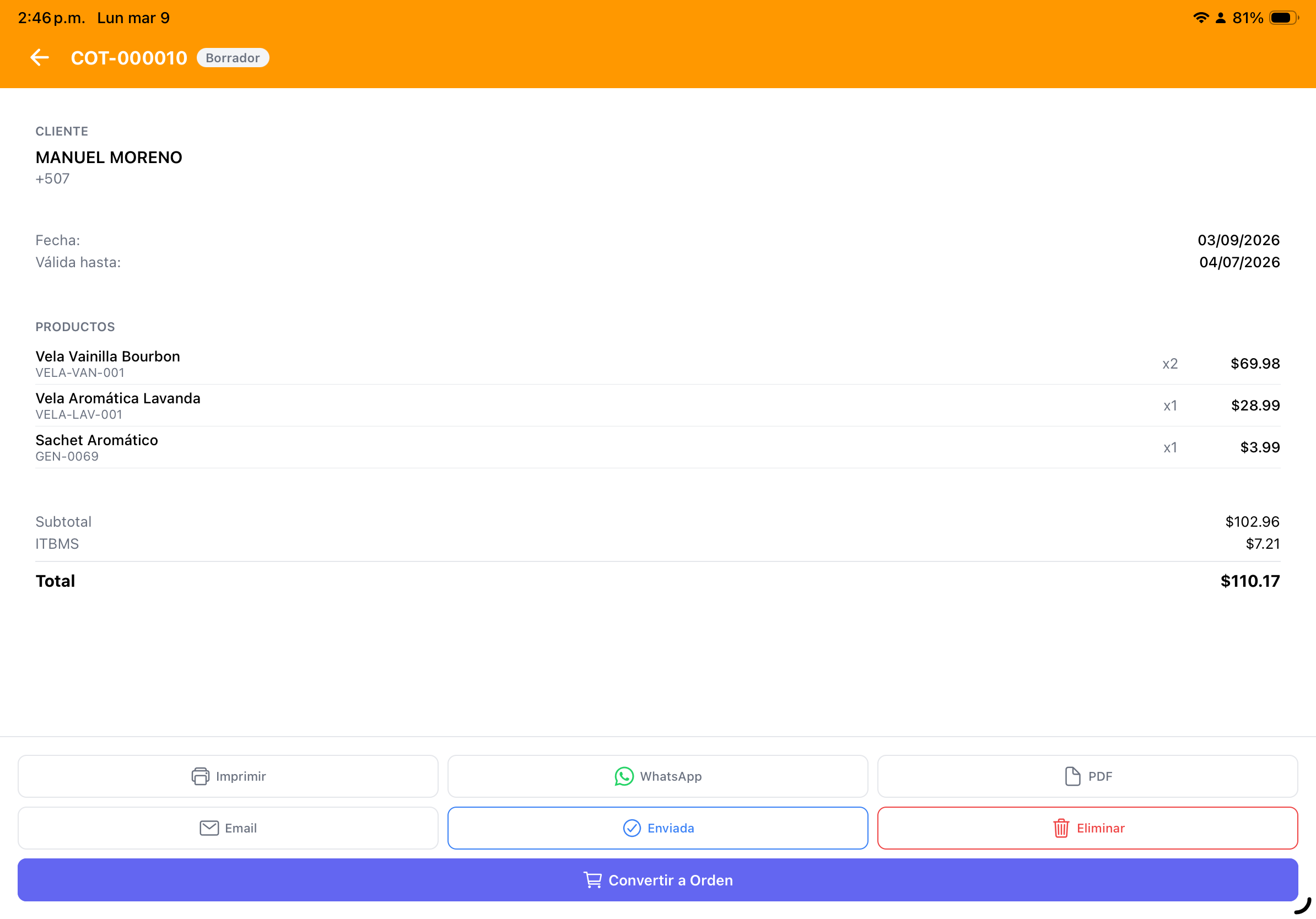
When you open a quote from the list, you can see the full detail including products, quantities, prices, and total. Available actions vary depending on the current status.
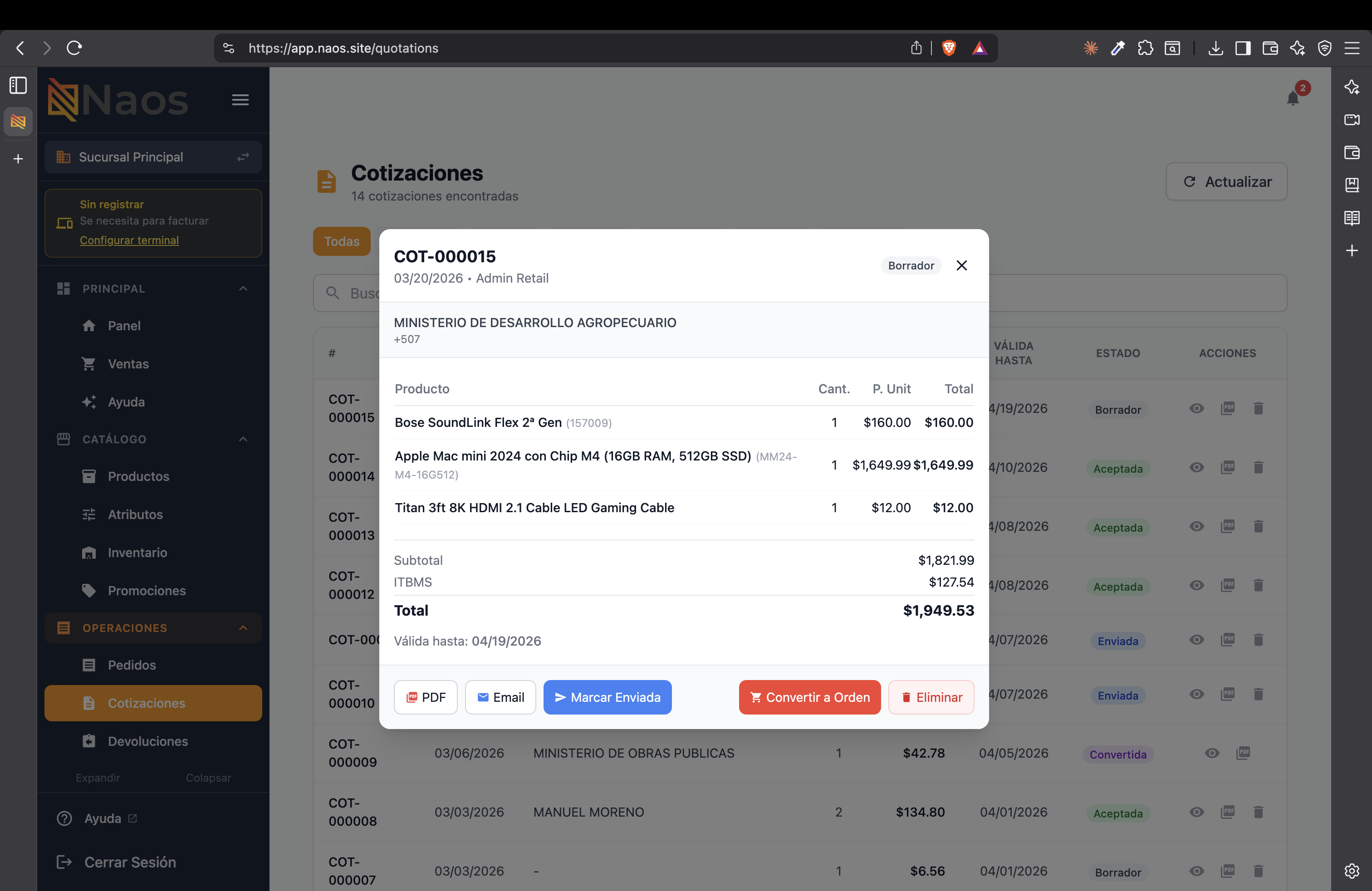
Available actions include:
- PDF — Generate a PDF of the quote.
- Email — Send via email.
- Mark as Sent / Mark as Accepted — Manually change the status.
- Convert to Order — Transform the quote into a sale.
- Delete / Cancel — Discard the quote.
Sending to the Customer
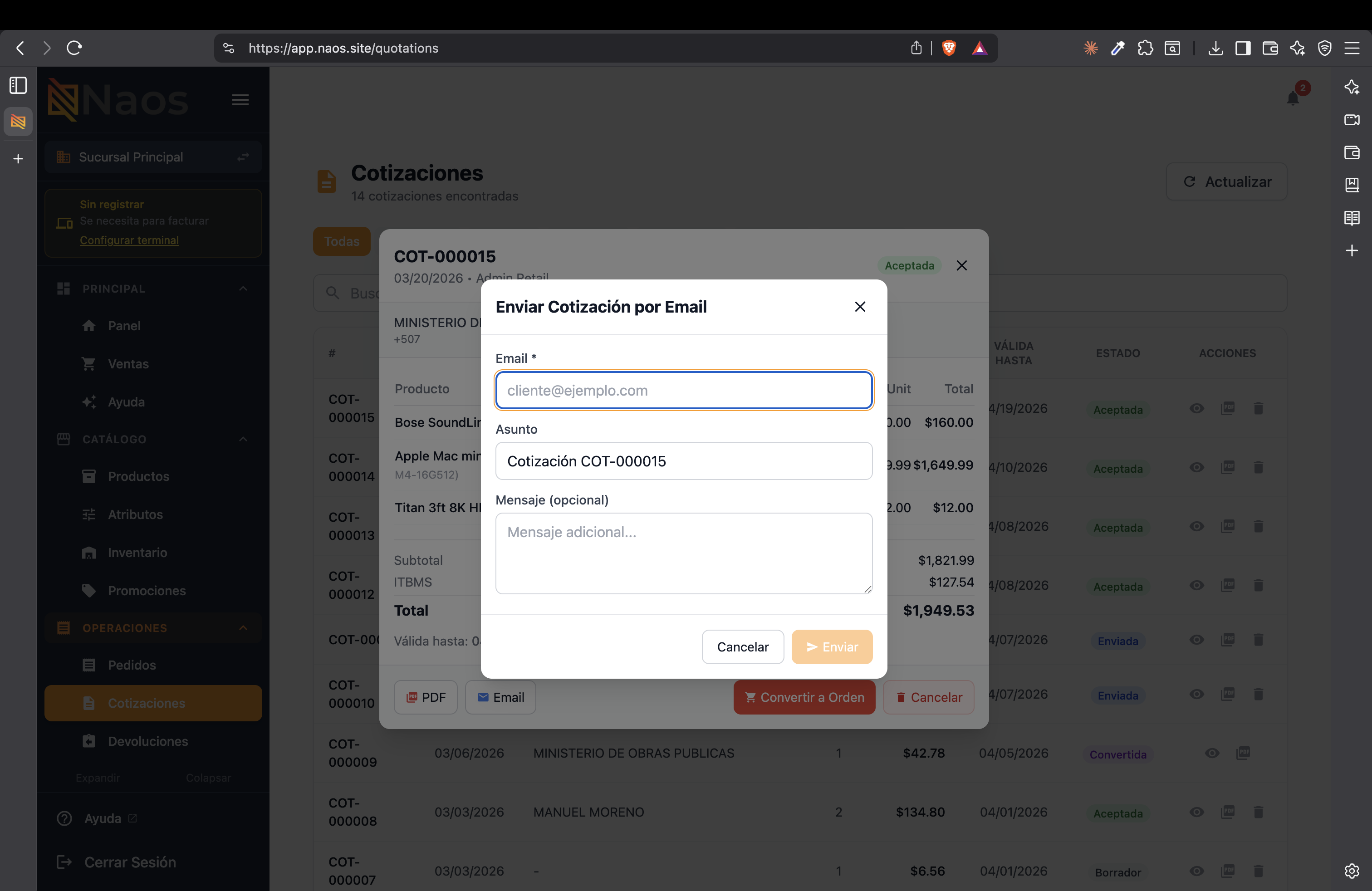
- Open the quote.
- Press “Email”.
- Enter the customer’s email, subject, and an optional message.
- Press “Send”.
The system generates a professional PDF with:
- Your business logo and details.
- Itemized products/services.
- Prices, taxes, and total.
- Validity date.
Converting to a Sale
When the customer accepts the quote:
- Open the accepted quote.
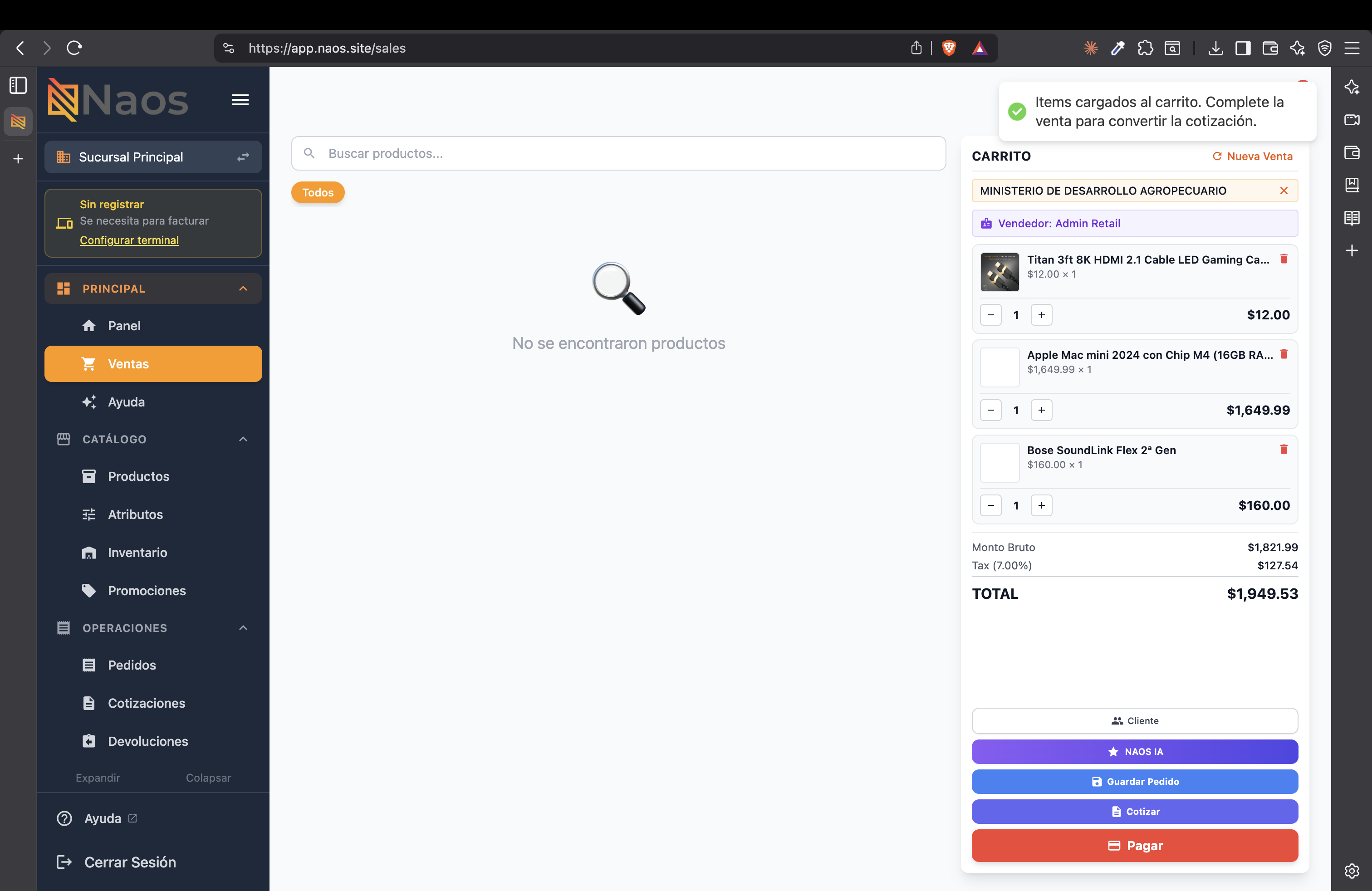
- Press “Convert to Order”.
- The products are automatically loaded into the sales cart with the same prices and quantities.
- Proceed to collect payment as usual.
Quotes on the Mobile App
The POS app also supports quotes (Retail mode):
- Create quotes directly from the cart.
- Generate and share PDFs on the spot.
- Print quotes on the thermal printer.

Management
From the quote list you can:
- Filter by status (draft, sent, accepted, etc.).
- Search by quote number or customer name.
- Resend quotes to the customer.
- View the full history of status changes.
Need to process a payment? See Sales & Payments