
Printer Setup
NAOS supports ESC/POS thermal printers for printing receipts, kitchen tickets, and closing reports.
Connection Types
| Type | Use | Example |
|---|---|---|
| Bluetooth | Portable printers | 58mm mini printers |
| WiFi / Network | Fixed network printers | Epson TM-T20, Star TSP |
| USB | Direct connection | Desktop printers |
| Built-in | Printer integrated into the device | Senraise H10 |
Setting Up a Printer
Bluetooth Printer
- Pair the printer with your tablet from Android settings (Bluetooth).
- In NAOS, go to Settings > Printers.
- Press “Add Printer”.
- Select Bluetooth as the connection type.
- The app will search for paired devices.
- Select your printer.
- Press “Test Print” to verify.
WiFi / Network Printer
- Make sure the printer is on the same network as your tablet.
- In NAOS, go to Settings > Printers.
- Press “Add Printer”.
- Select Network as the connection type.
- Enter the printer’s IP address (e.g., 192.168.1.100).
- Enter the port (usually 9100).
- Press “Test Print”.
Built-in Printer (Senraise)
If your device is a Senraise H10 or another POS with a built-in printer:
- The printer is detected automatically.
- No setup is needed.
- Paper width is 58mm (32 characters per line).
- NAOS automatically adapts the receipt format to the narrower width.
Paper Widths
| Width | Characters | Devices |
|---|---|---|
| 58mm | 32 chars | Senraise H10, mini portables |
| 80mm | 42 chars | Epson TM-T20, Star TSP, most desktop printers |
NAOS detects the width and adapts the format:
- 58mm: Compact layout, no per-item tax column.
- 80mm: Full layout with all columns.
Print Types
Sales Receipt
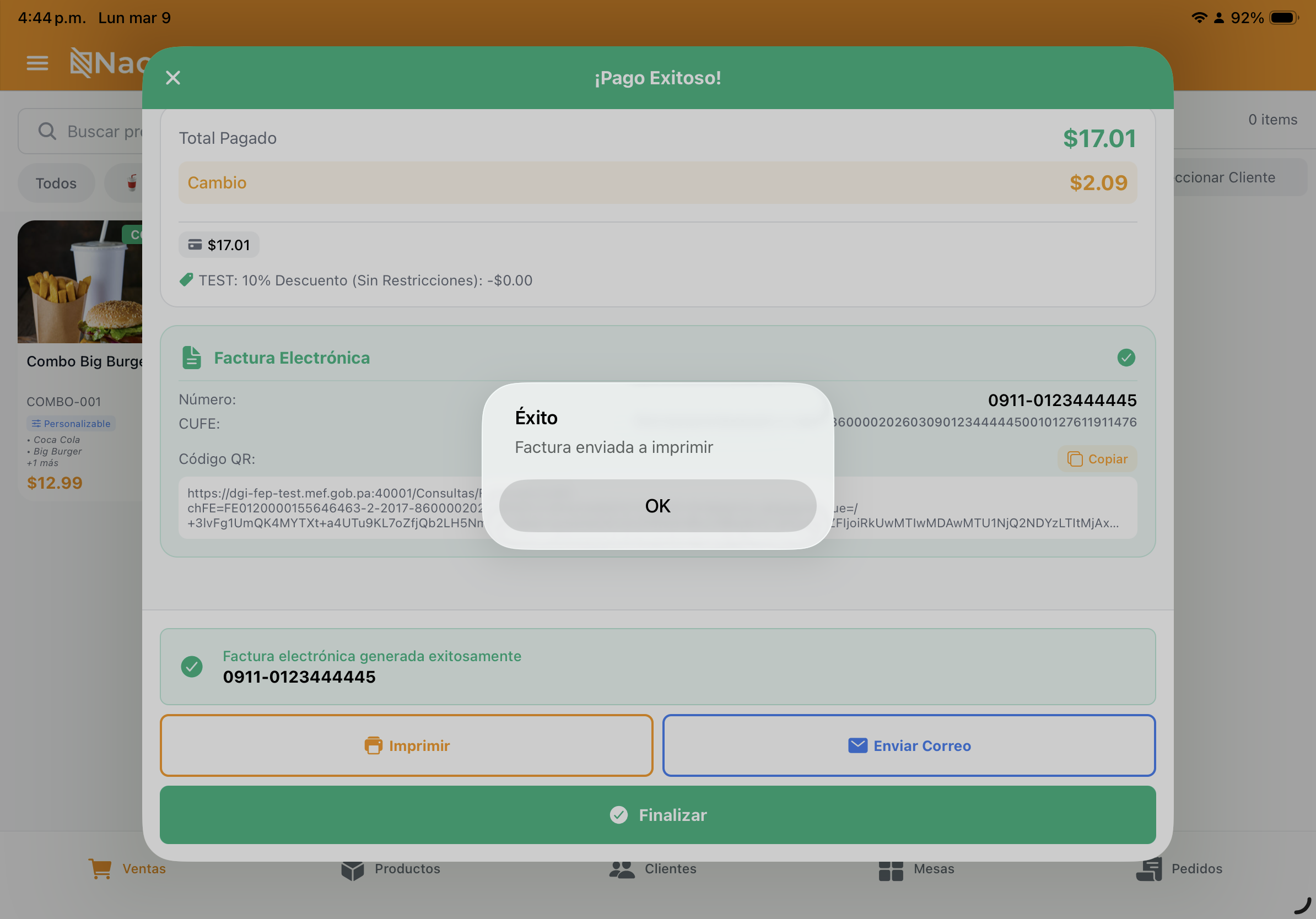
Prints automatically when a payment is completed:
- Business details (name, tax ID, address).
- Product details.
- Subtotal, taxes, discounts, total.
- Payment method and change.
- QR code for DGI verification.
- CUFE (if electronic invoice).
Kitchen Ticket
In restaurant mode, when an order is confirmed:
- Prints on the kitchen printer.
- Shows only products with notes.
- Indicates table and server.
Pre-check
Prints the order details without closing it (so the customer can review before paying).
Closing Report
When performing an X or Z Closing:
- Sales summary by payment method.
- Expected cash vs. counted cash.
- Difference (overage/shortage).

Multiple Printers
You can configure several printers with different roles:
- Main printer: Sales receipts.
- Kitchen printer: Kitchen tickets.
- Bar printer: Drink orders.
Set up each one from Settings > Printers in the app or from the Web Portal under Settings > Printers.
Troubleshooting
| Problem | Solution |
|---|---|
| Not printing | Verify the printer is powered on and paired/connected |
| Strange characters | Make sure the printer supports ESC/POS |
| Text cut off | Check the configured paper width (58mm vs 80mm) |
| QR not printing | Some budget printers do not support QR — contact support |
| Slow printing (Bluetooth) | Move the device closer to the printer; avoid obstacles |
Need to set up the digital certificate? See Digital Certificate