
Sales from the Mobile App
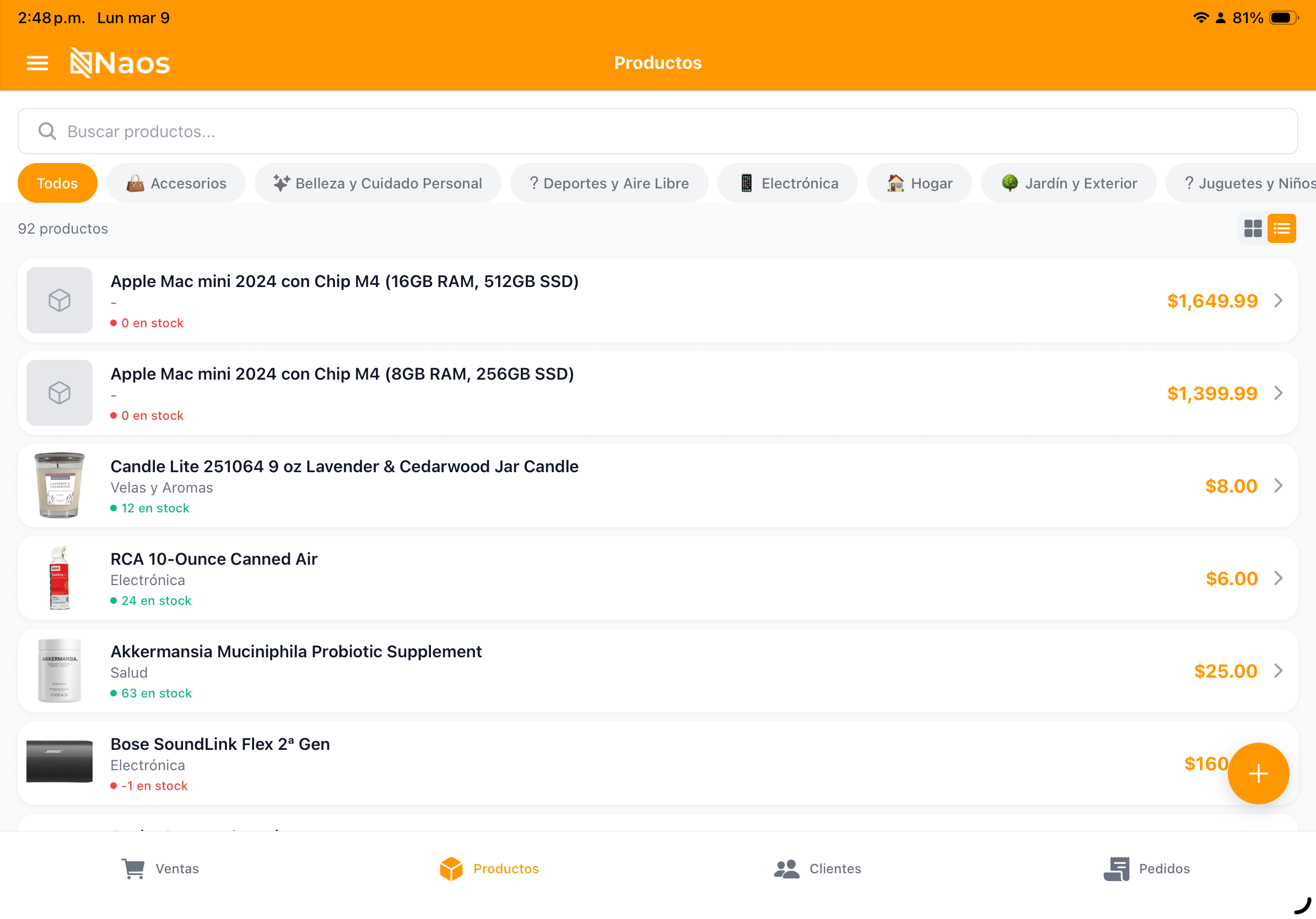
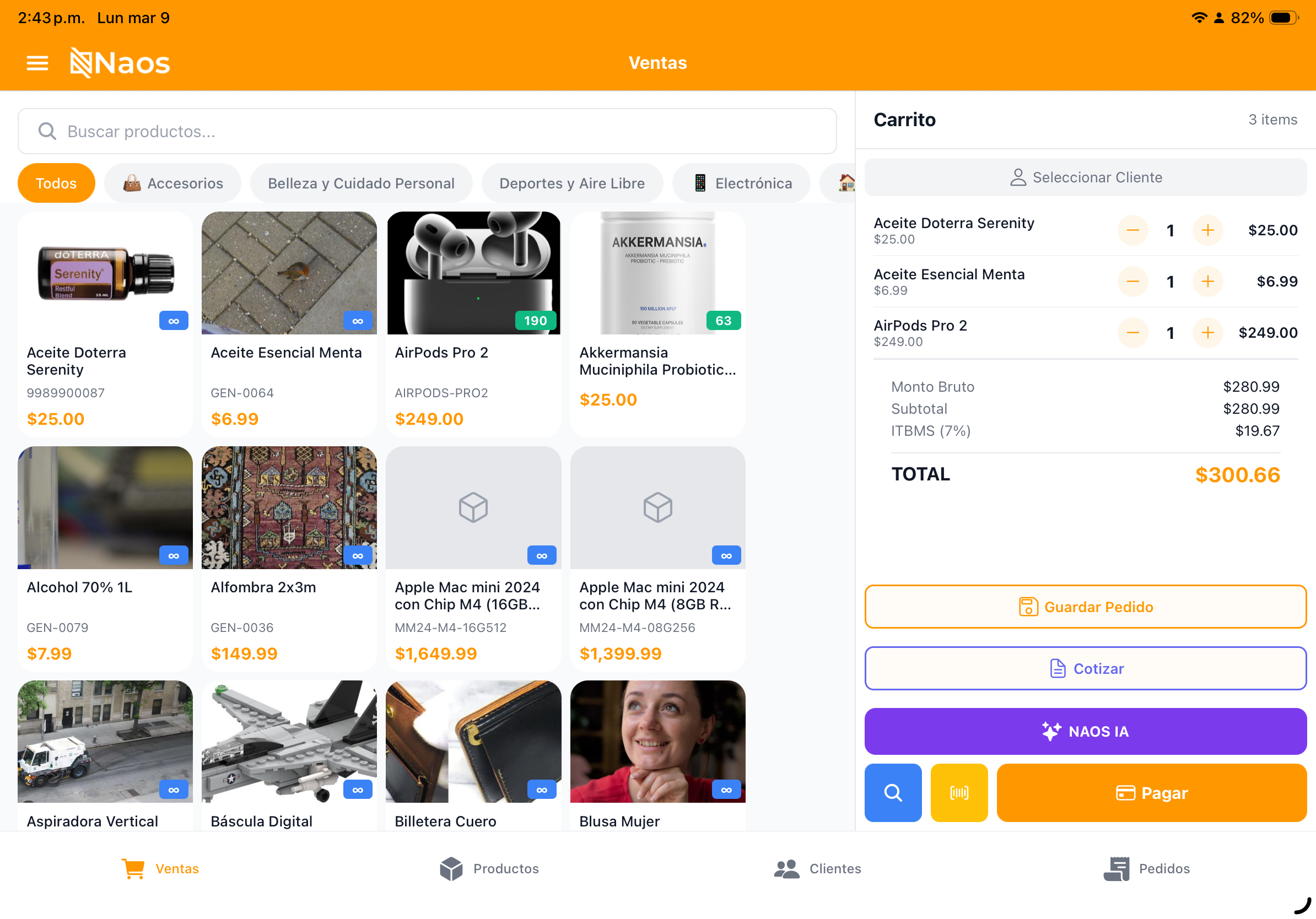
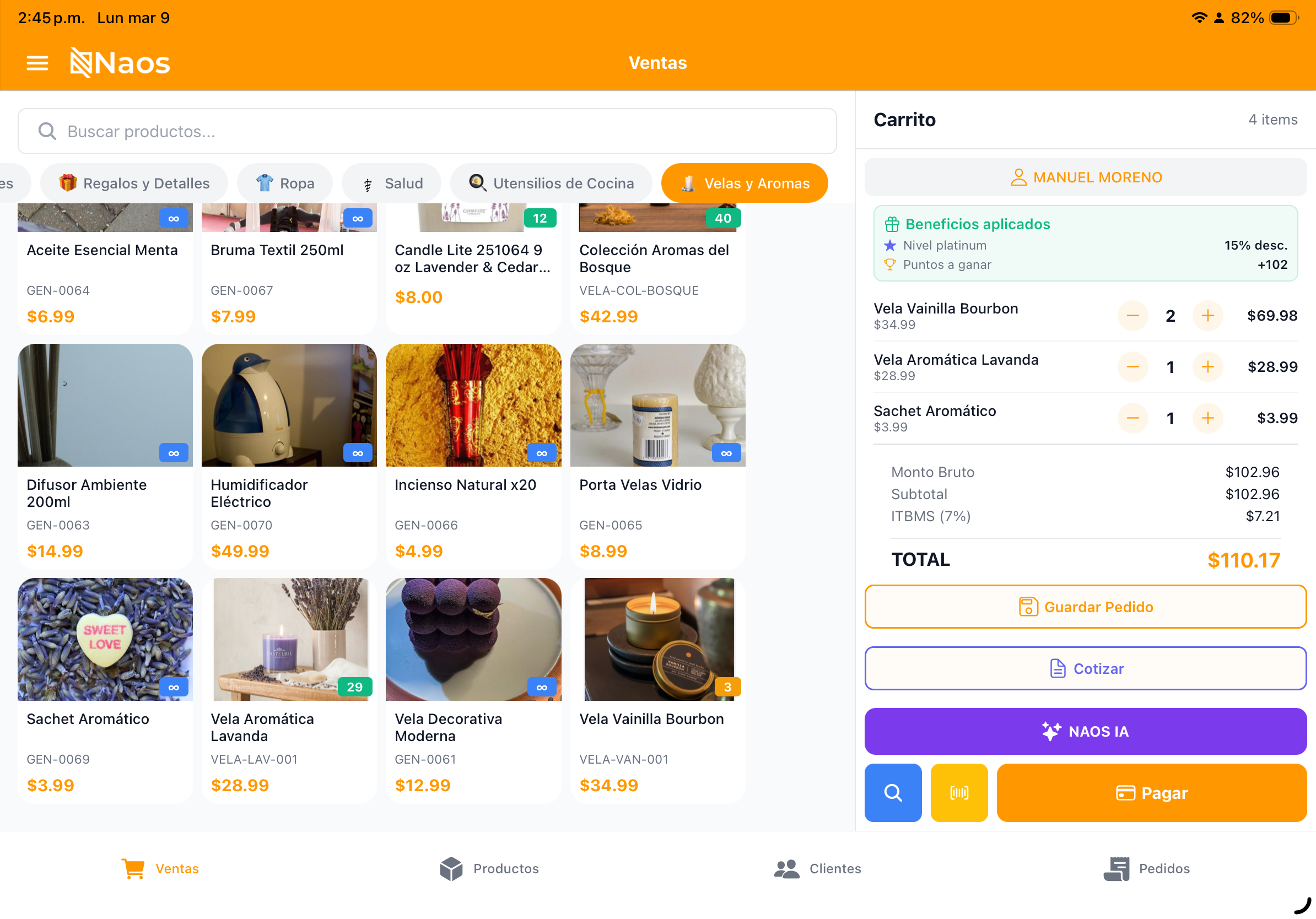
The Sales screen is the heart of the app. From here you can build the cart, apply discounts, select customers, and collect payment.
Adding Products to the Cart
Visual Selection
- Products are organized by categories (top tabs).
- Tap a product to add it to the cart.
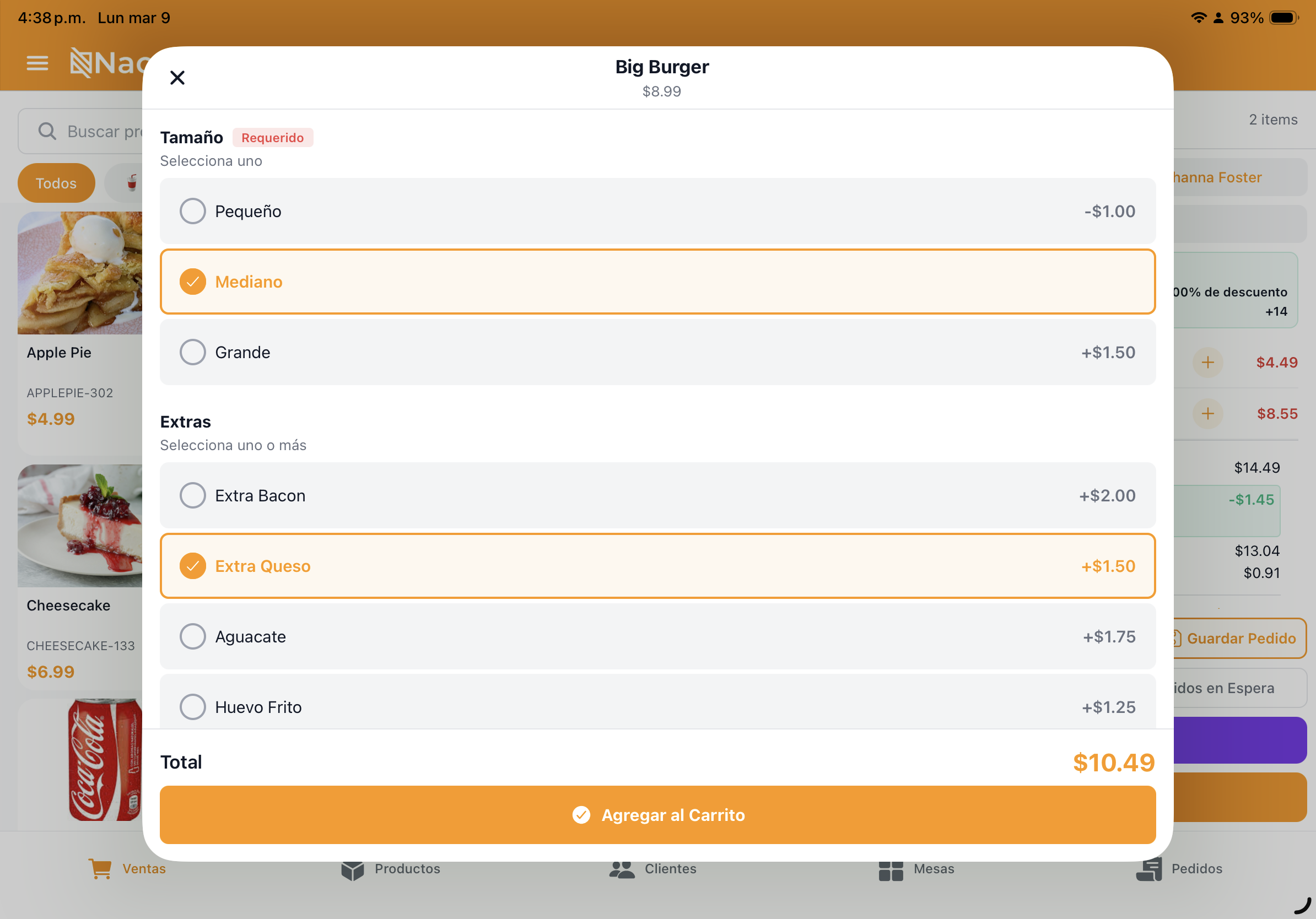
- If it has modifiers (e.g., steak doneness), a selector will open.
Search
- Use the search bar to find products by name.
- Results filter in real time.
Barcode Scanning
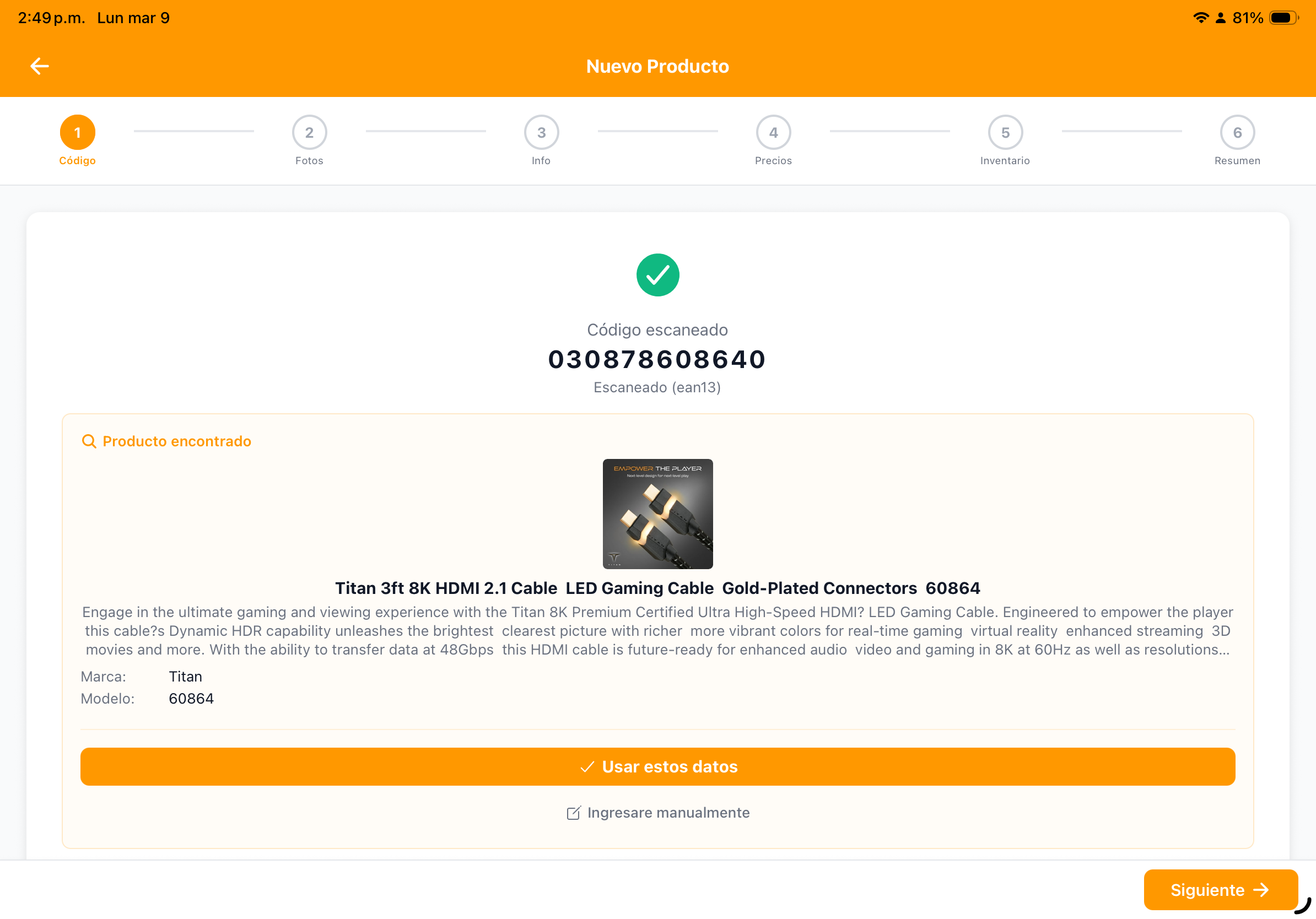
- In Retail mode, use the camera or an external scanner.
- The product is automatically added to the cart.

Cart Management
Edit Items
- Tap an item in the cart to:
- Change the quantity (+ / -).
- Add a note (e.g., “No onions”).
- Select additional modifiers.
- Apply a per-item discount.
- Change the price (if you have override permission).
Remove Items
- Swipe the item to the left.
- Or tap the item and press delete.
Clear Cart
- Press the trash icon to empty the entire cart.
Customer on the Sale
- Press the customer button at the top.
- Search by name, phone, or ID number.
- If not found, create a new customer directly.
- With a customer assigned:
- Loyalty benefits are activated.
- The invoice is issued under their name.
- They can redeem points.


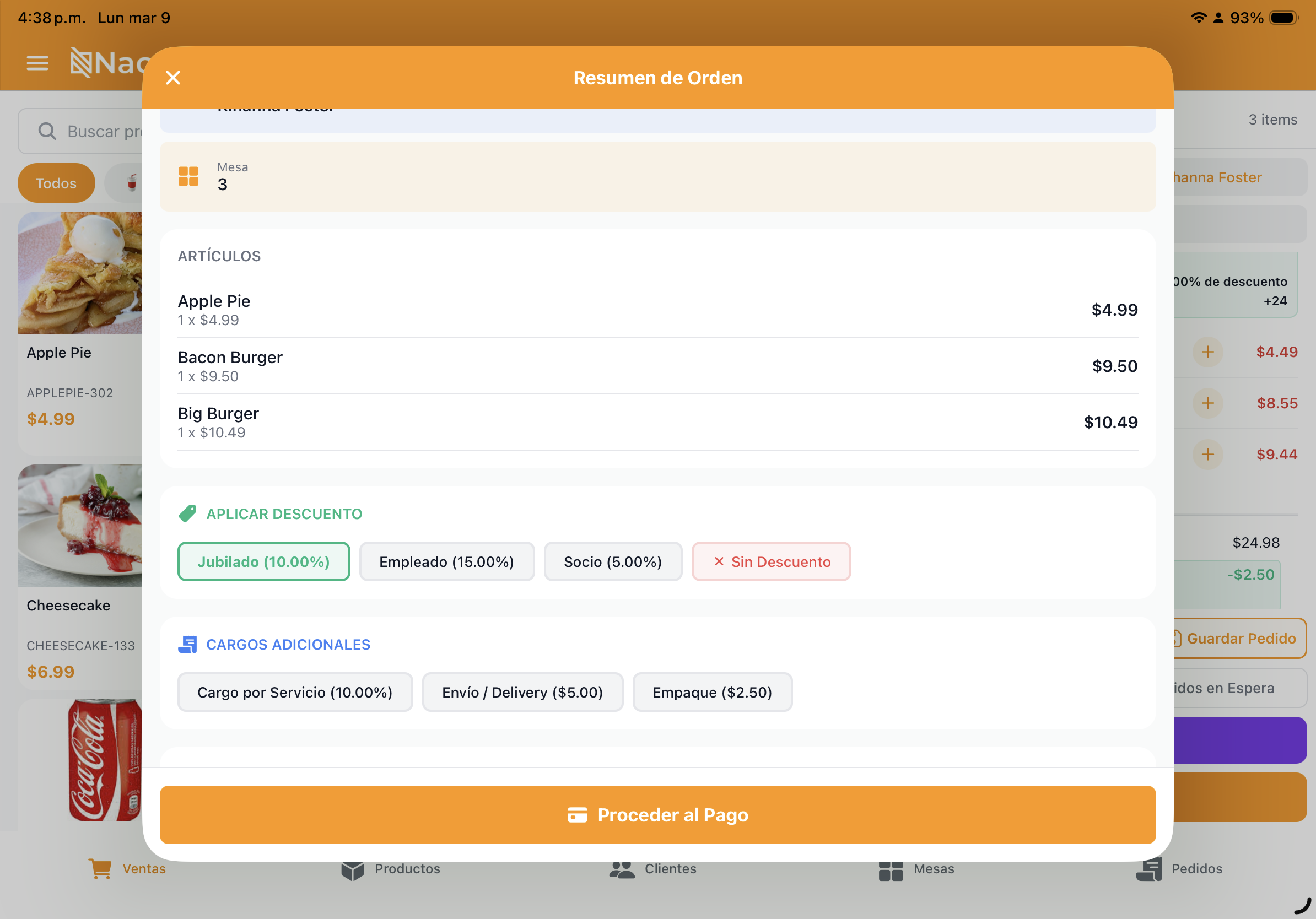
Discounts
Per-Item Discount
- Tap the product in the cart.
- Select “Discount”.
- Choose a percentage or fixed amount.
Global Discount
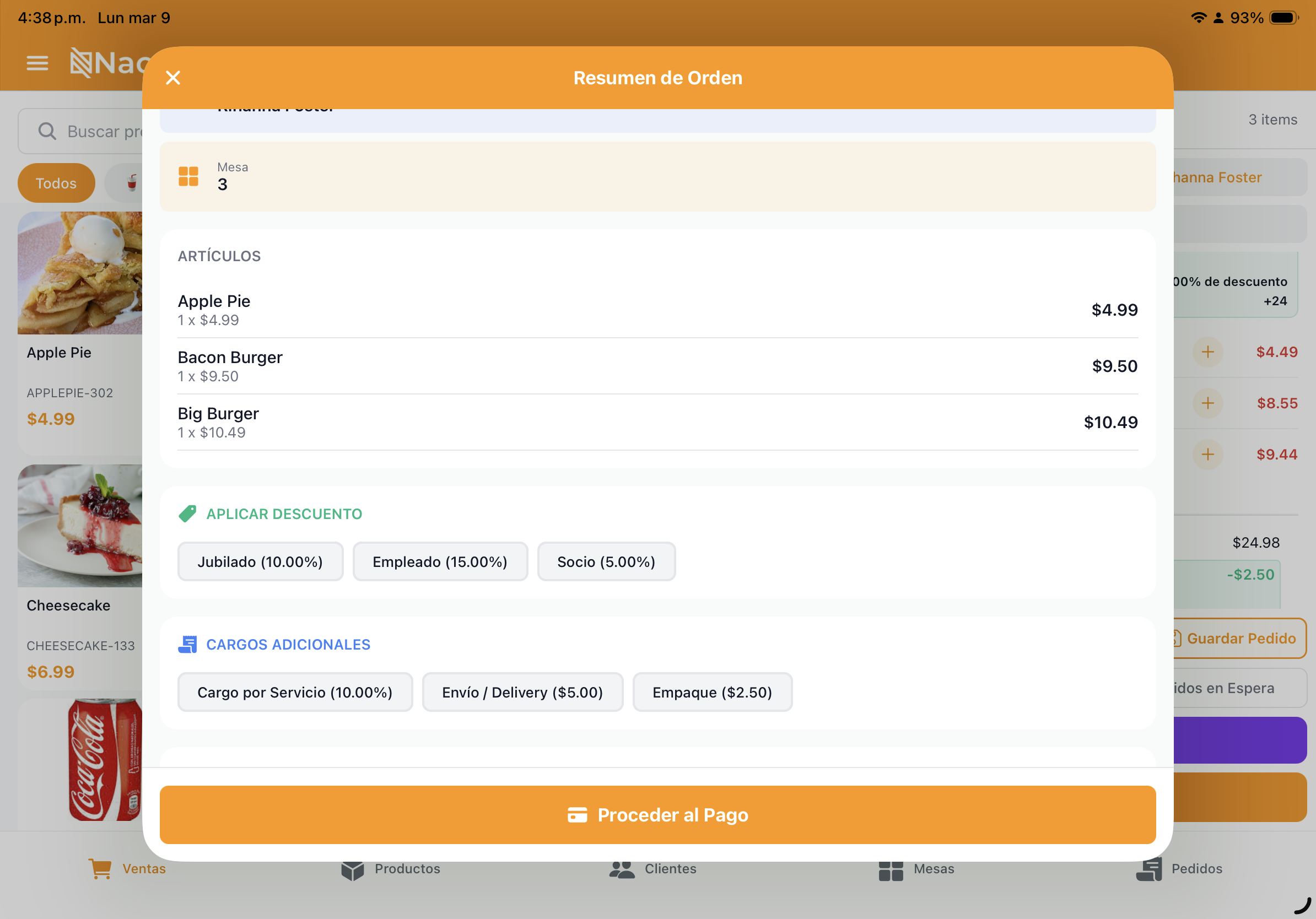
- Press “Discount” in the cart summary.
- It applies to the order total.
Automatic Promotions
- If there are active promotions, they are applied automatically when conditions are met.
- The discount is reflected in the cart.
Payment Process
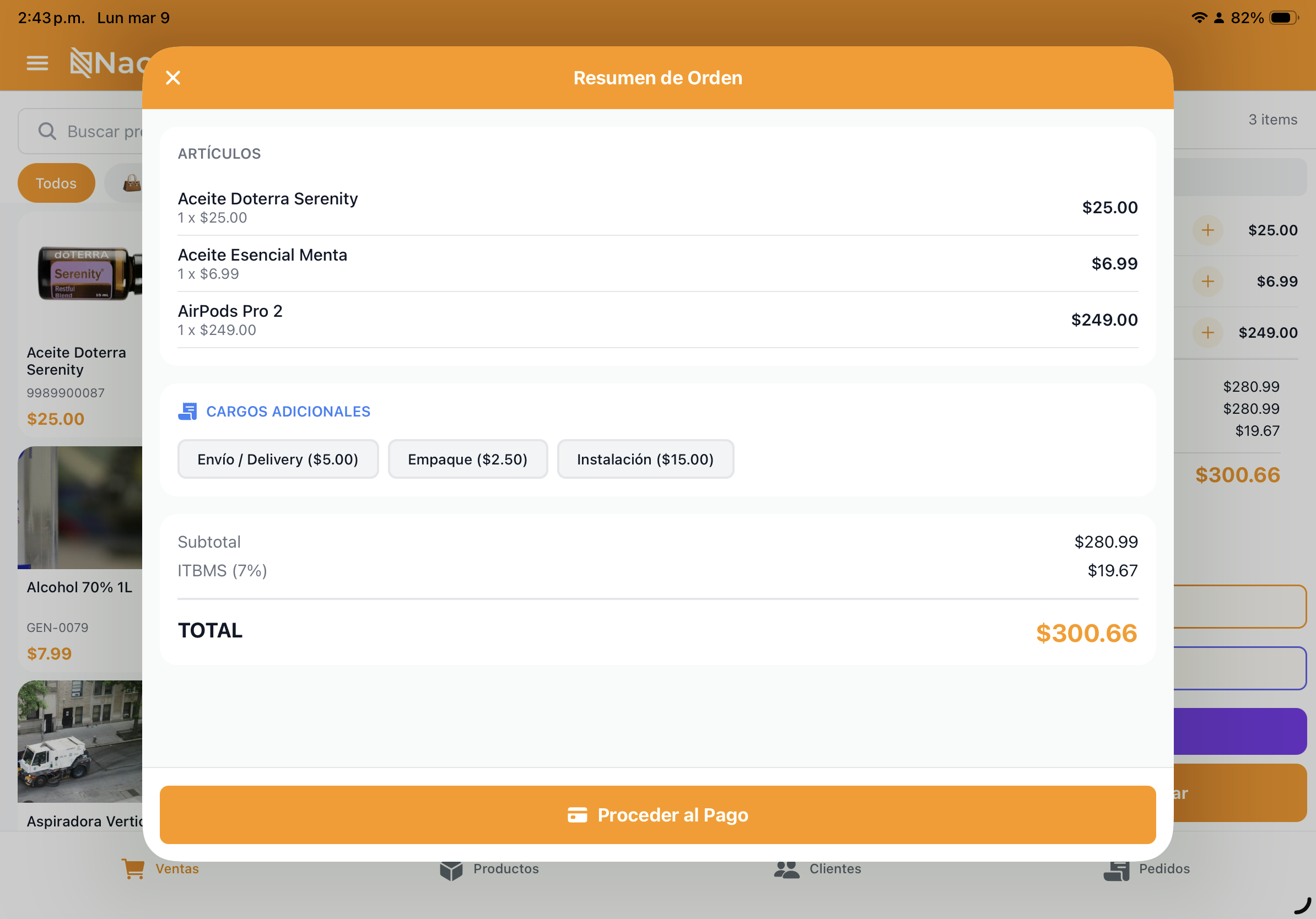
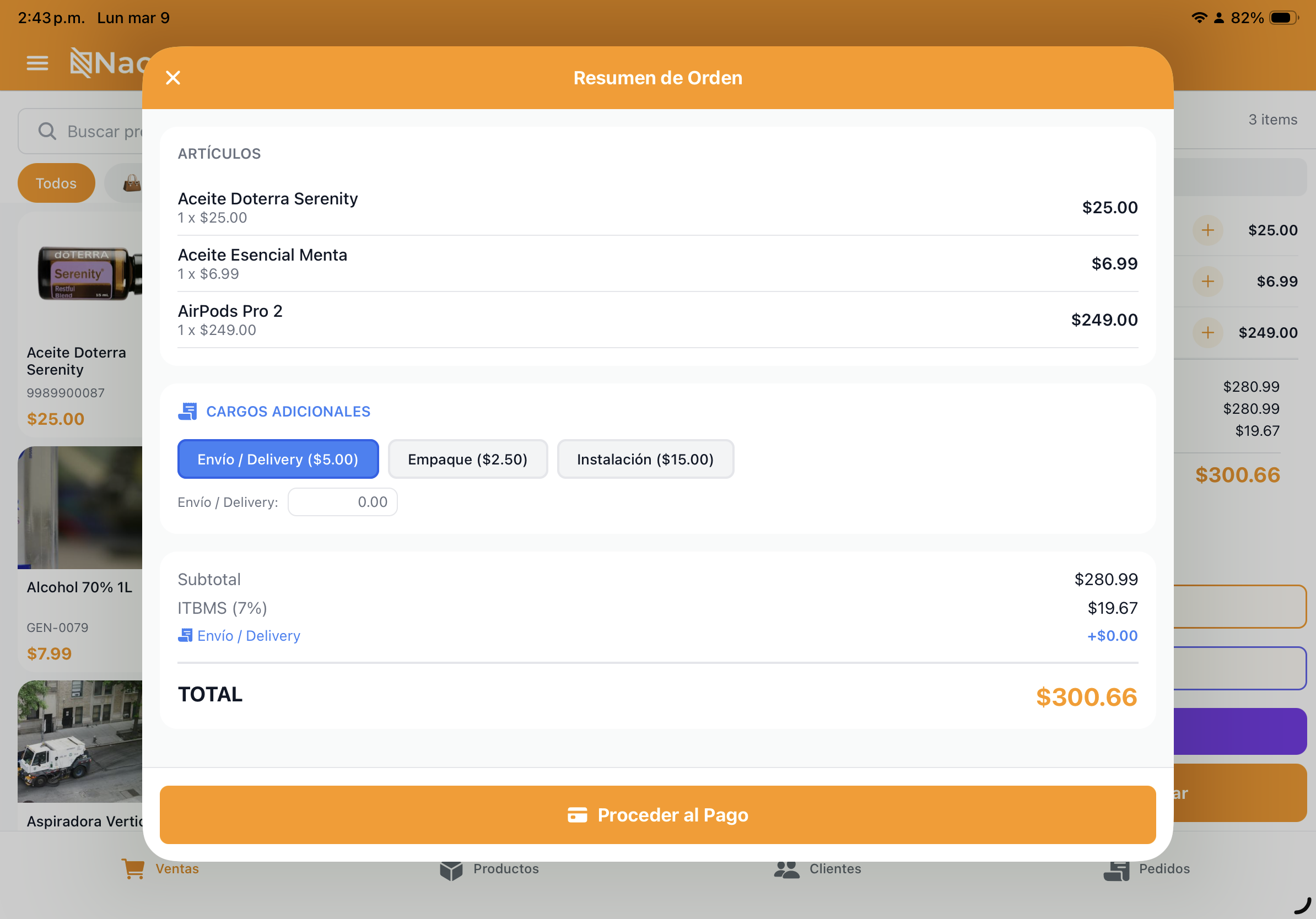
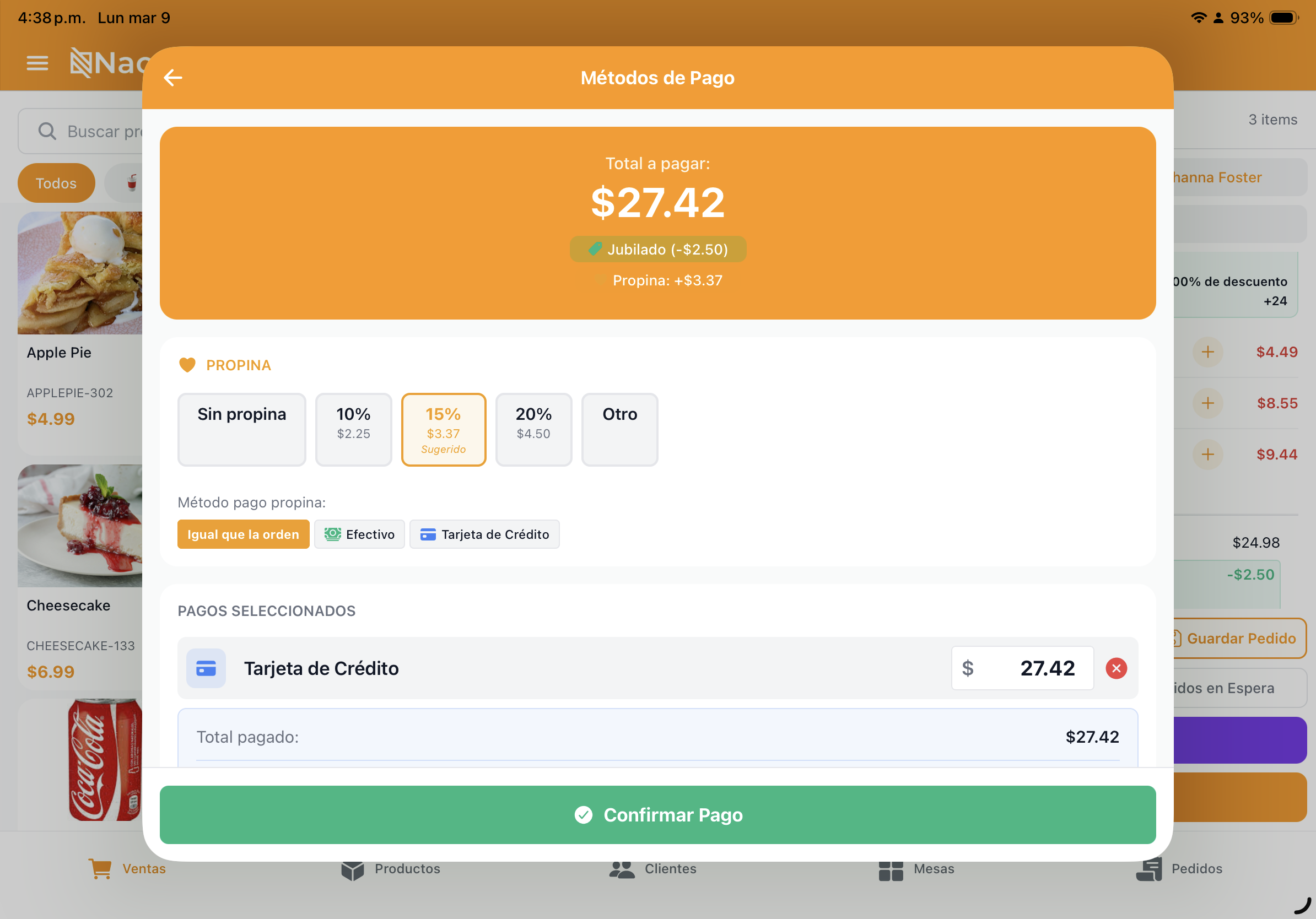
- Press the “Pay” (or “Charge”) button.
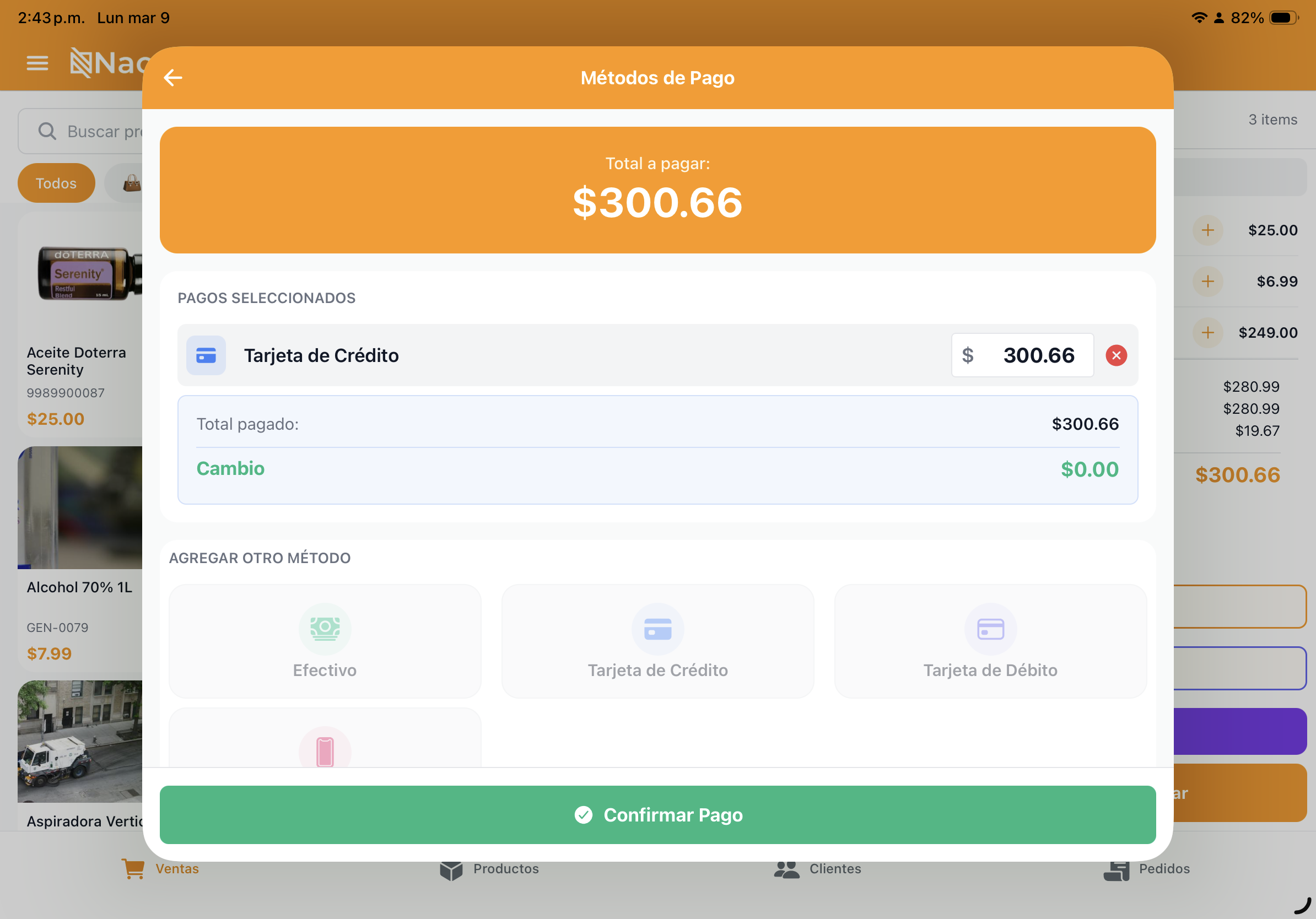
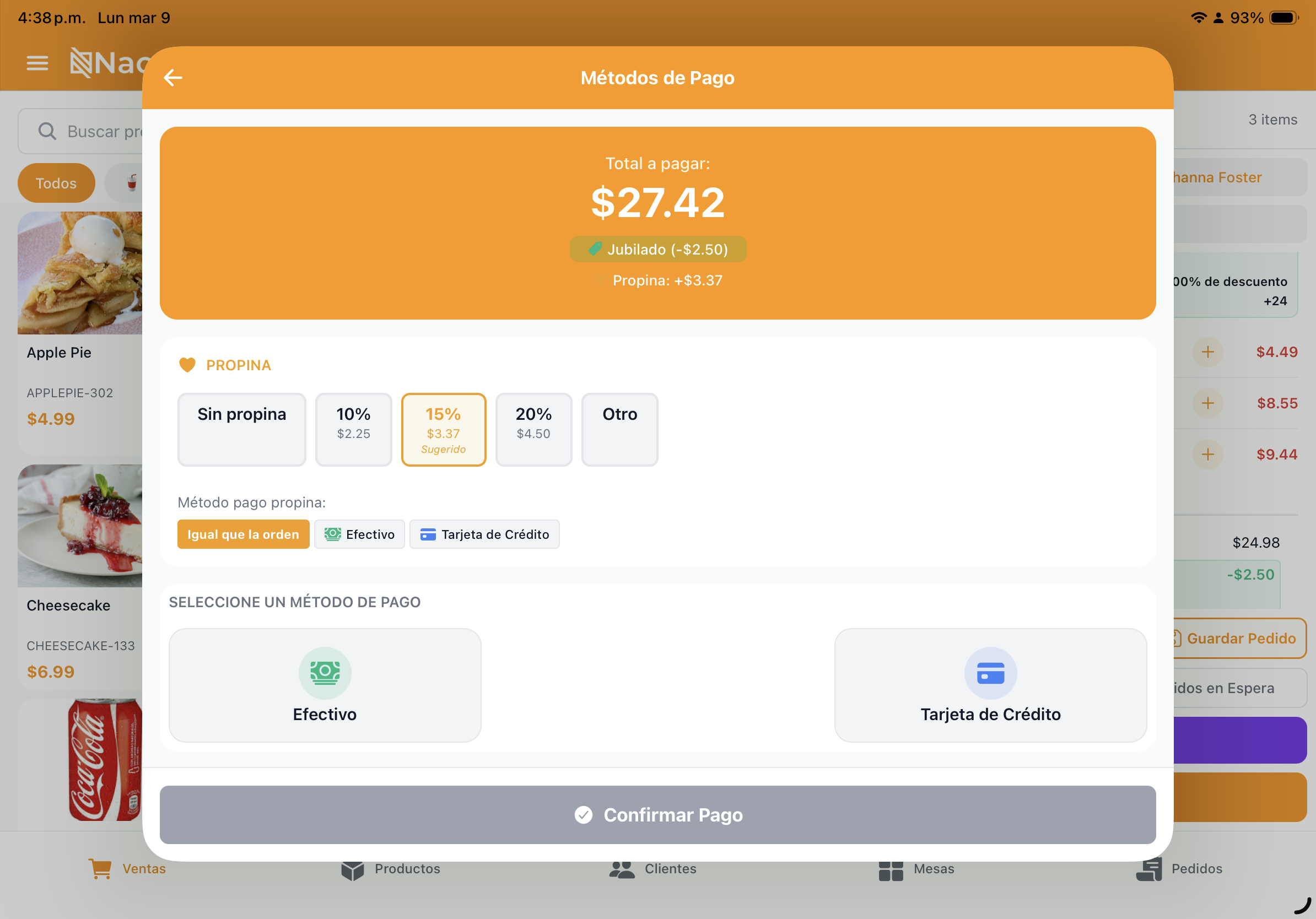
- Select the payment method:
| Method | Action |
|---|---|
| Cash | Enter amount received; the system calculates the change |
| Card | Enter the reference from the physical card terminal |
| Yappy | Confirm the transfer |
| ACH | Confirm the transfer |
| Mixed | Combine multiple methods (e.g., part cash, part card) |
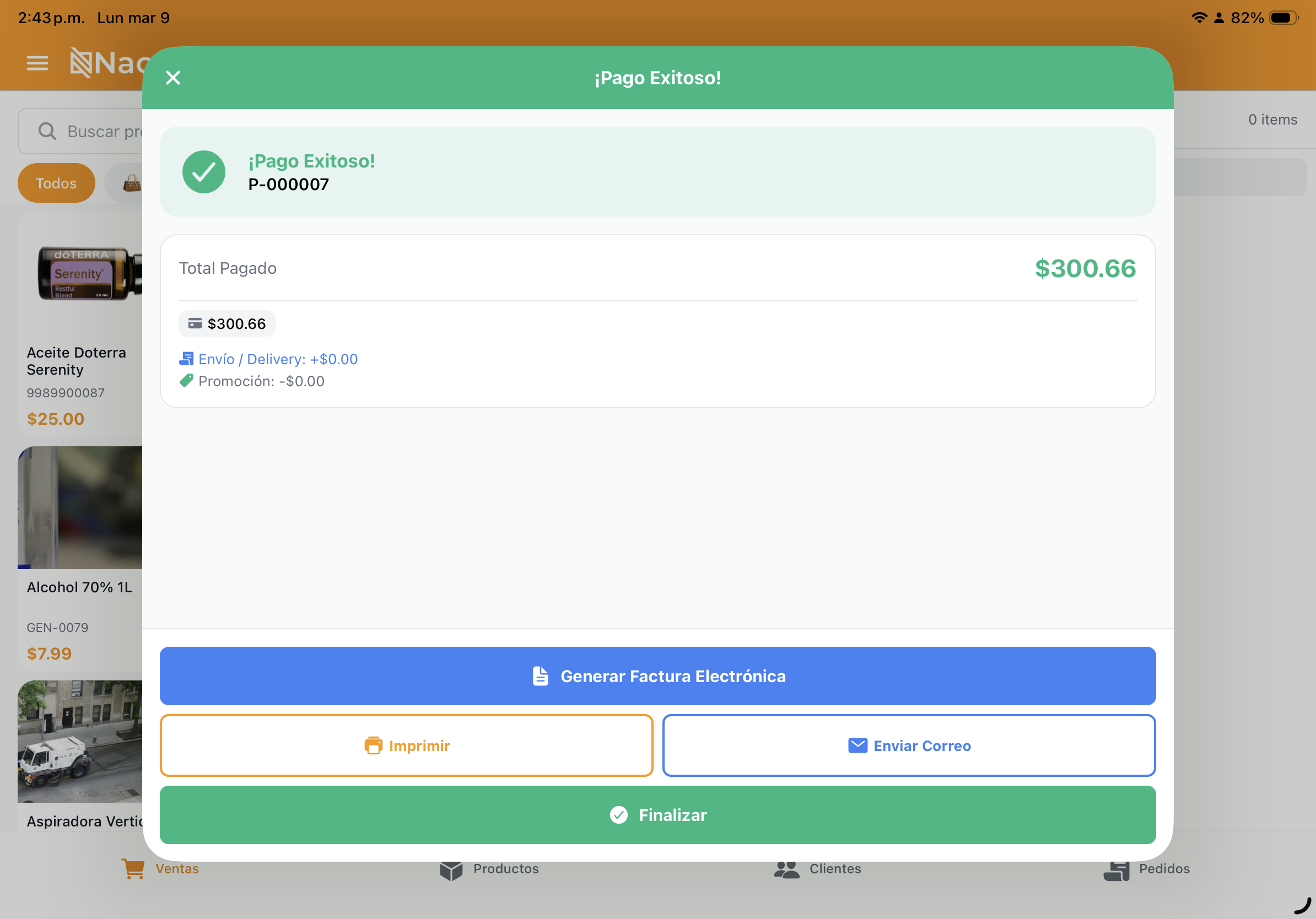
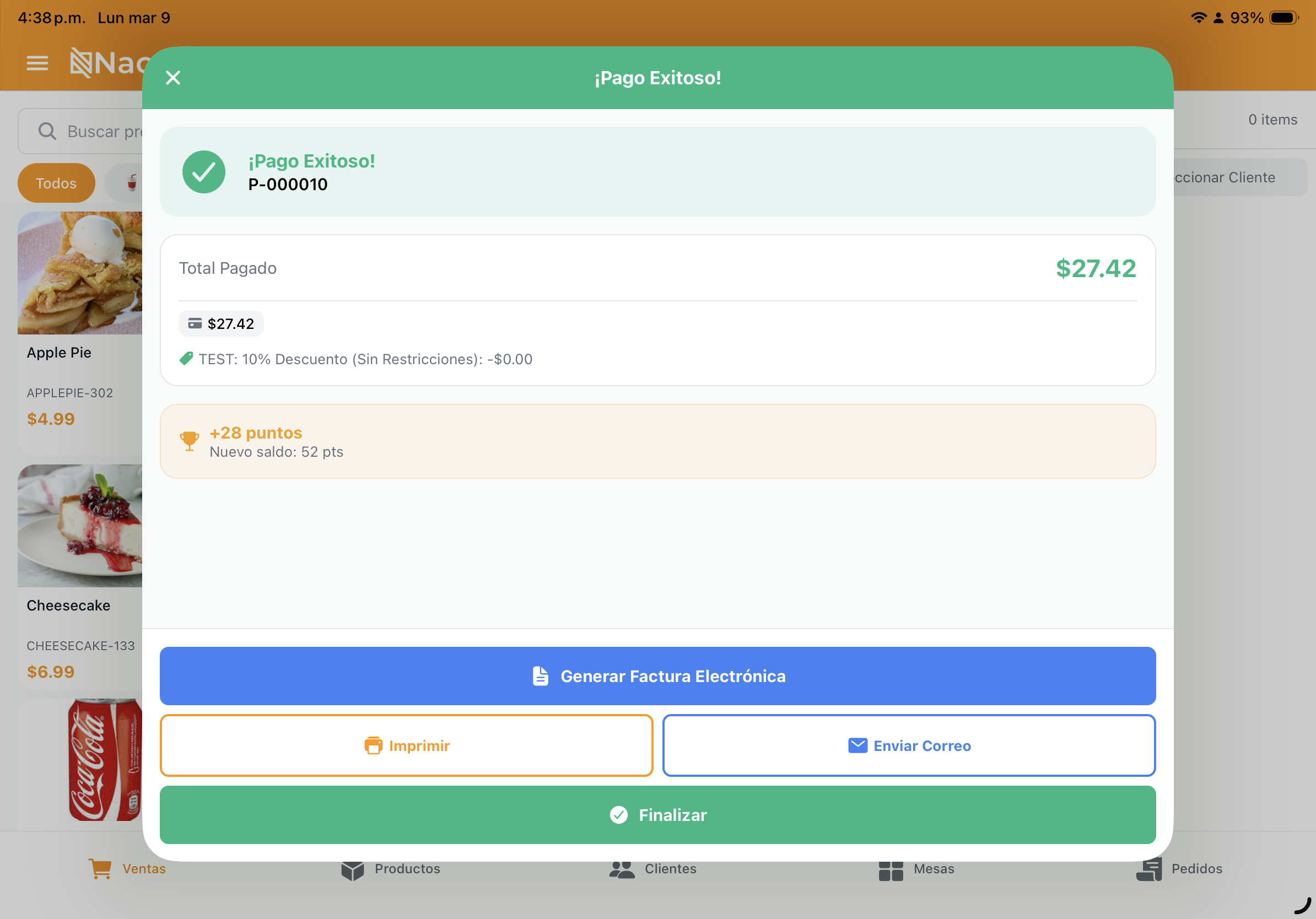
- Press “Finalize Payment”.
- The system will:
- Digitally sign the invoice (if PAC is configured).
- Submit to the DGI (if connected).
- Print the receipt (if a printer is configured).
- Email the invoice to the customer (if they have an email on file).
Orders on Hold
To pause a sale and serve another customer:
- Build the cart.
- Press “Hold”.
- The order is saved with a name or number.
- Serve the next customer.
- To resume, open “Orders on Hold” and select the order.
Split Bill
In restaurant mode, you can split the bill:
- In the cart, press “Split Bill”.
- Choose the method:
- Equal parts: Divide the total among N people.
- By products: Assign products to each person.
- By amount: Each person pays a specific amount.
- Collect payment for each part separately.
Tables (Restaurant)
From the Tables screen:
- Tap an available table to assign an order to it.
- Occupied tables display the total and elapsed time.
- Tap an occupied table to view/edit the order.
- You can move an order to another table.



Need to set up your printer? See Printers Having billing issues? See Digital Certificate