
Promotions and Discounts
The NAOS Promotions Engine lets you create discount rules that are automatically applied at the point of sale based on conditions you define.
Promotion Types
Percentage Discount
Applies a percentage discount on products or categories.
- Example: 20% off beverages on Fridays.
Fixed Amount Discount
Reduces a fixed amount from the price.
- Example: $2.00 off burgers.
Quantity Promotion (Buy X Get Y)
Rewards volume purchases.
- Example: Buy 2 beers, get the 3rd free.
Combo
Groups products at a special price.
- Example: Burger + Fries + Soda = $8.99 (instead of $11.50).
Bundle (Package)
Similar to a combo but with optional products within a group.
- Example: Choose any appetizer + any drink for $12.99.
Creating a Promotion
- Go to Promotions in the side menu (requires Admin role).
- Press “New Promotion”.
- Configure the form tabs:
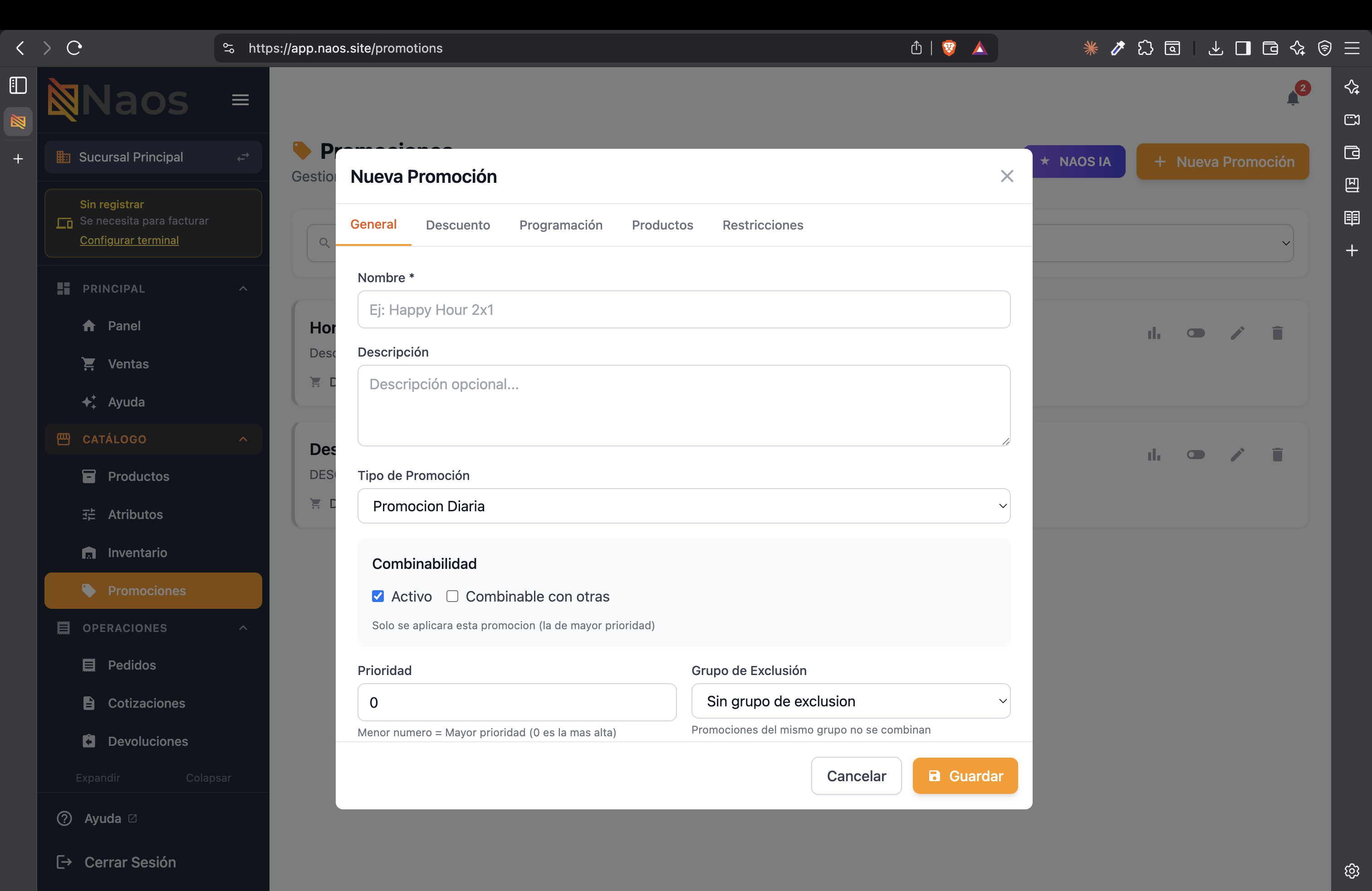
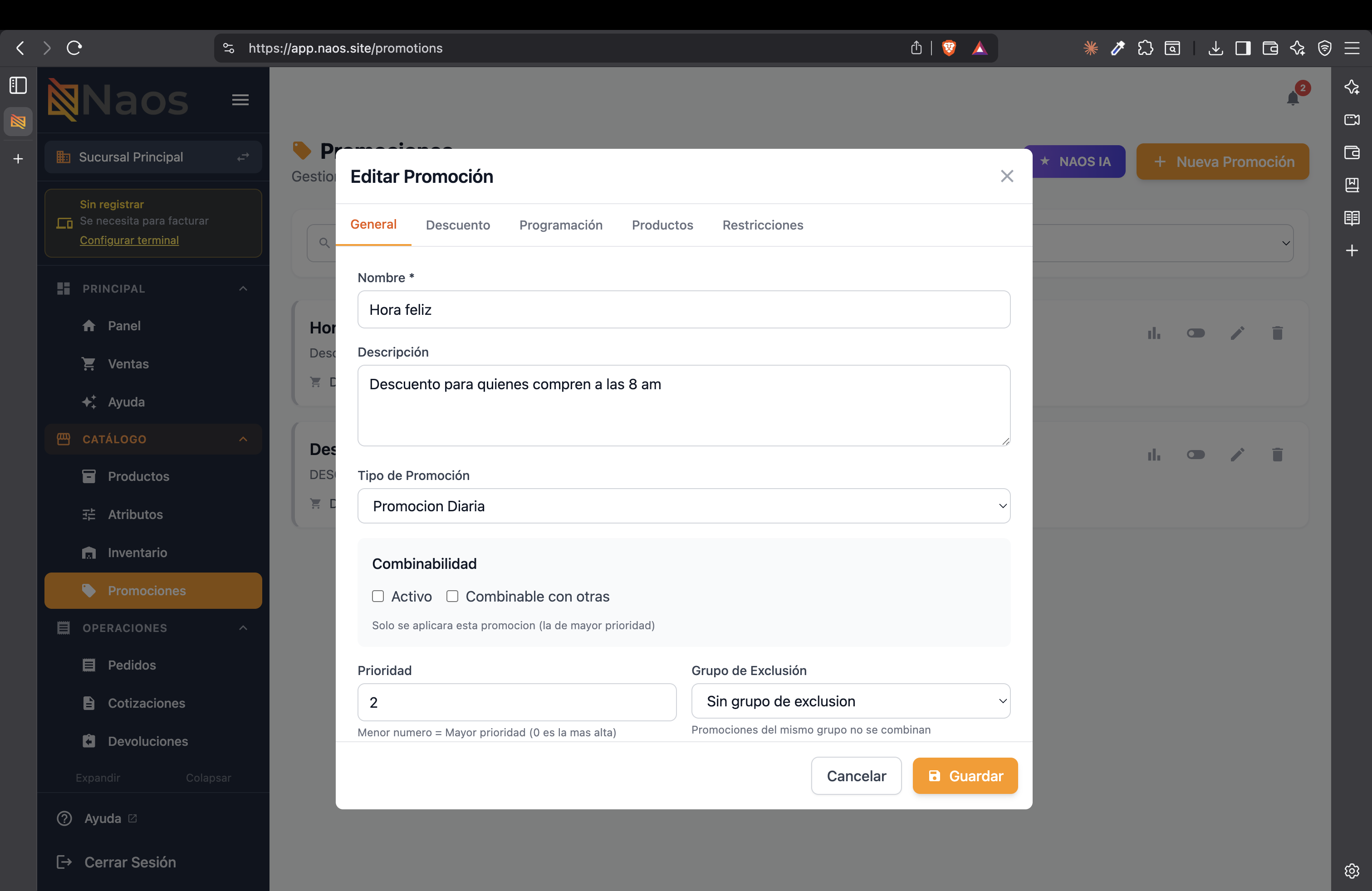
General Tab
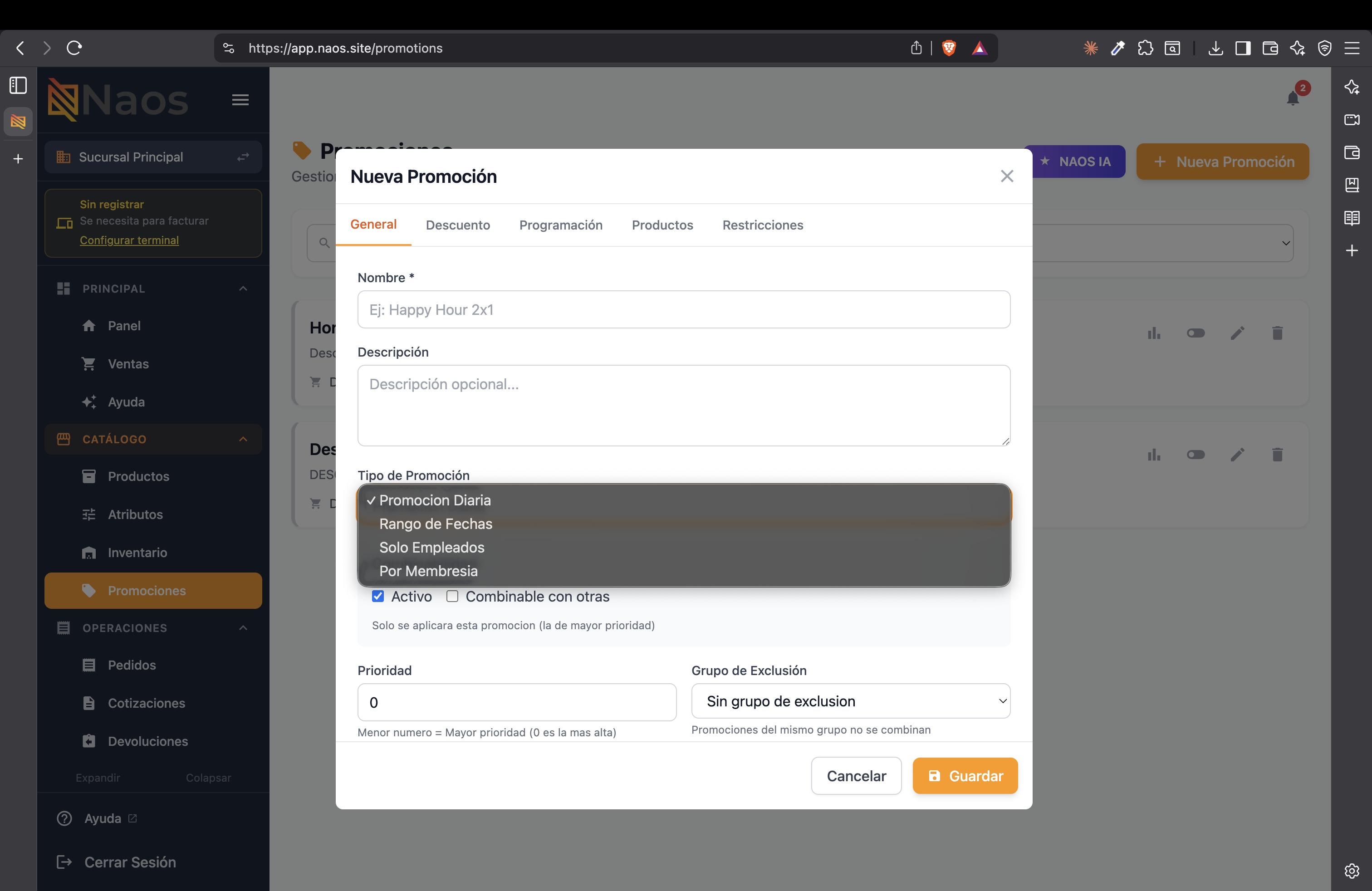
Define the name, description, and promotion type. Available types are: Daily Promotion, Date Range, Employees Only, and By Membership.
Also configure combinability (whether it can stack with others), priority (lower number = higher priority), and exclusion group.
Discount Tab
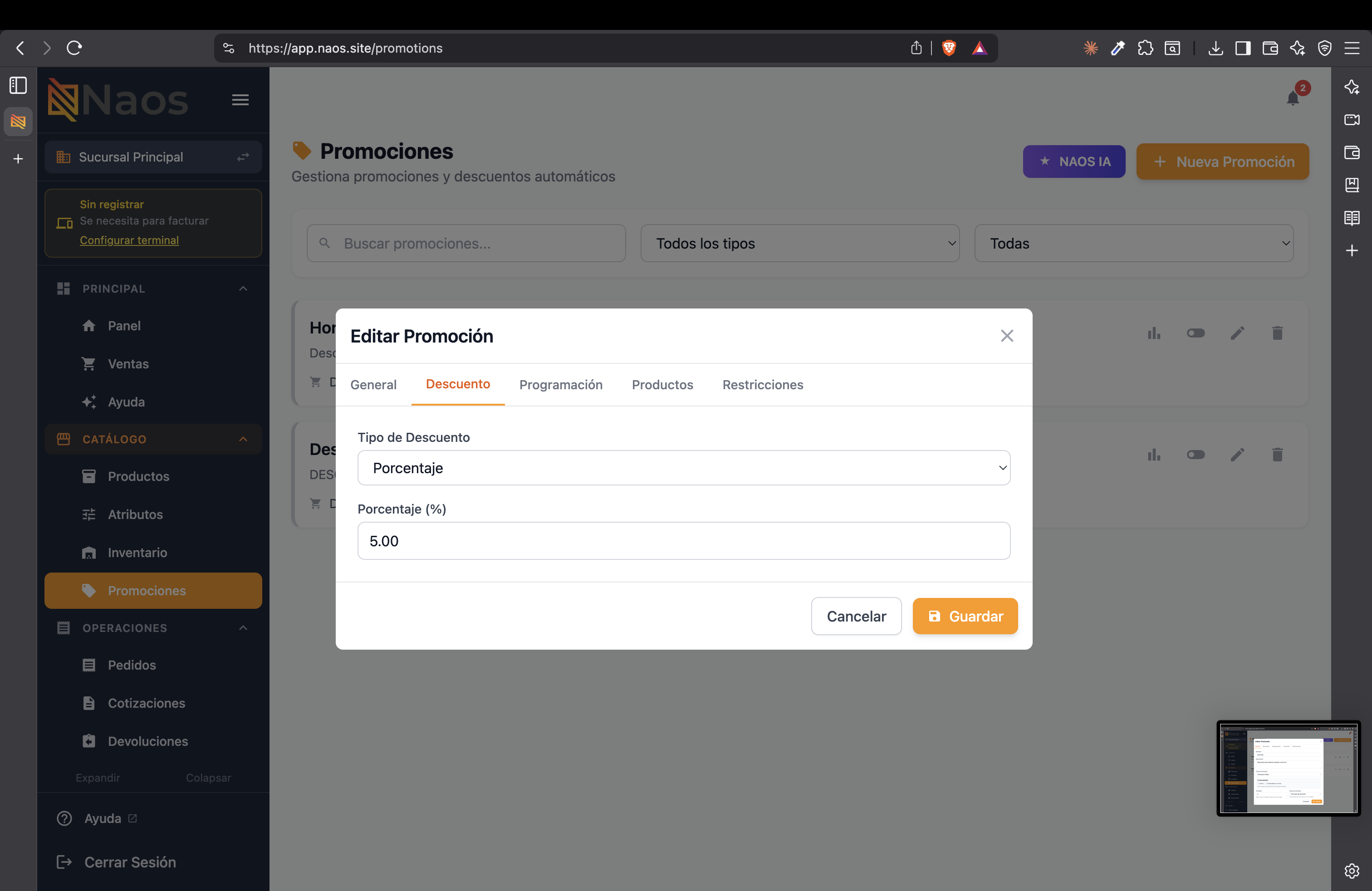
Select the discount type (percentage or fixed amount) and its value.
Scheduling Tab
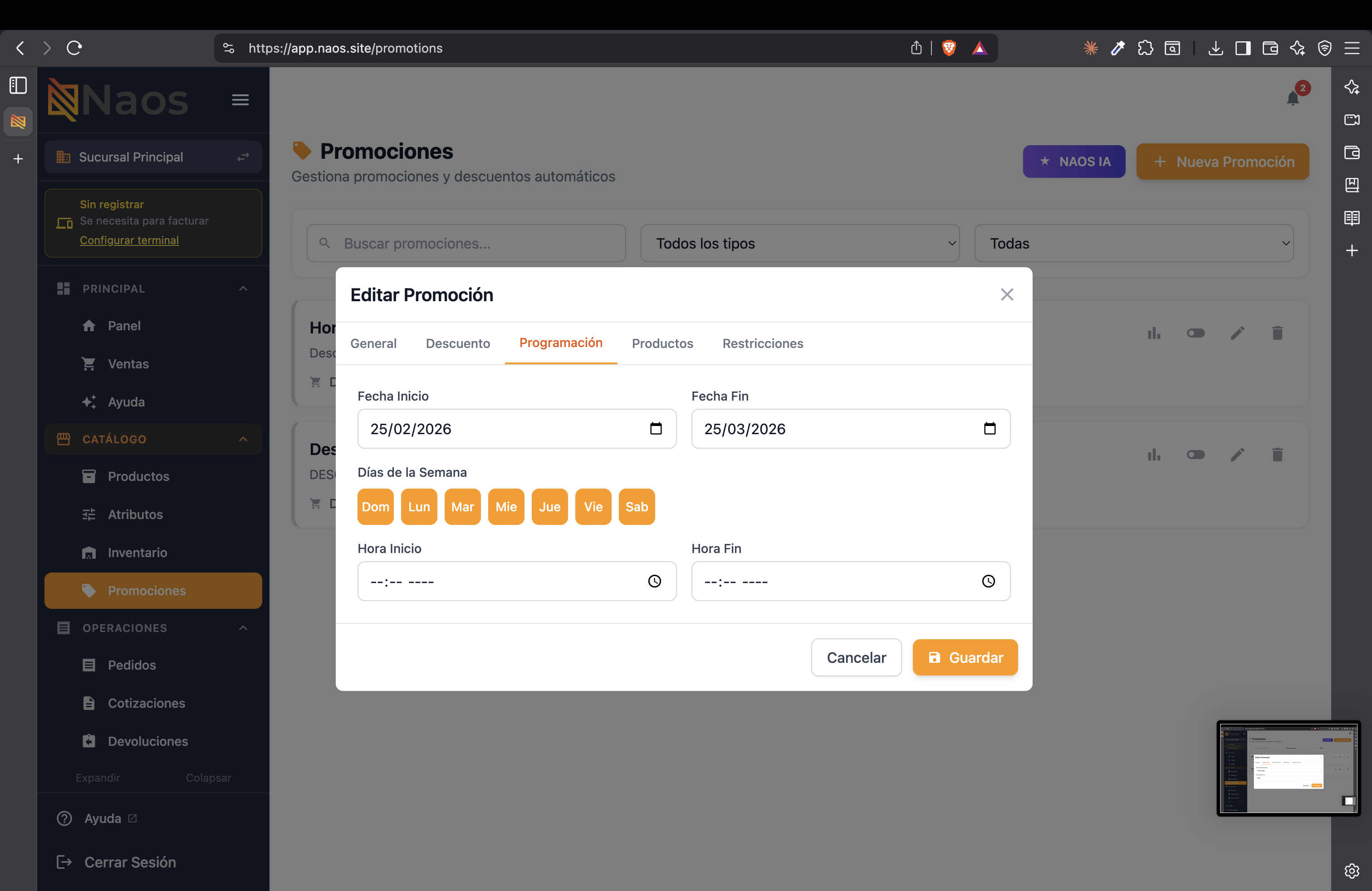
Define start and end dates, the days of the week it applies, and optionally a specific time range (ideal for Happy Hour).
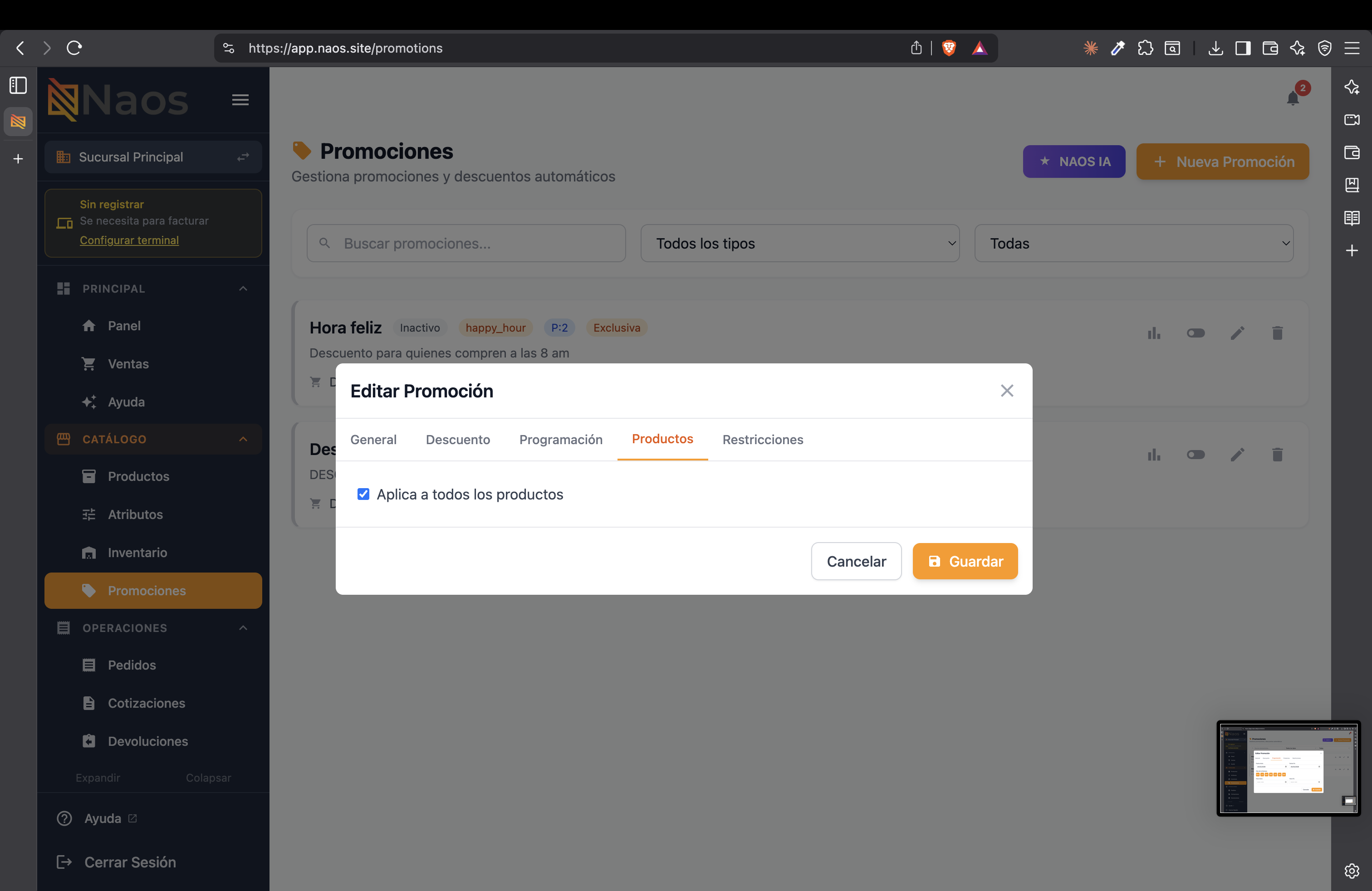
Products Tab
Select whether the promotion applies to all products or to specific products/categories.
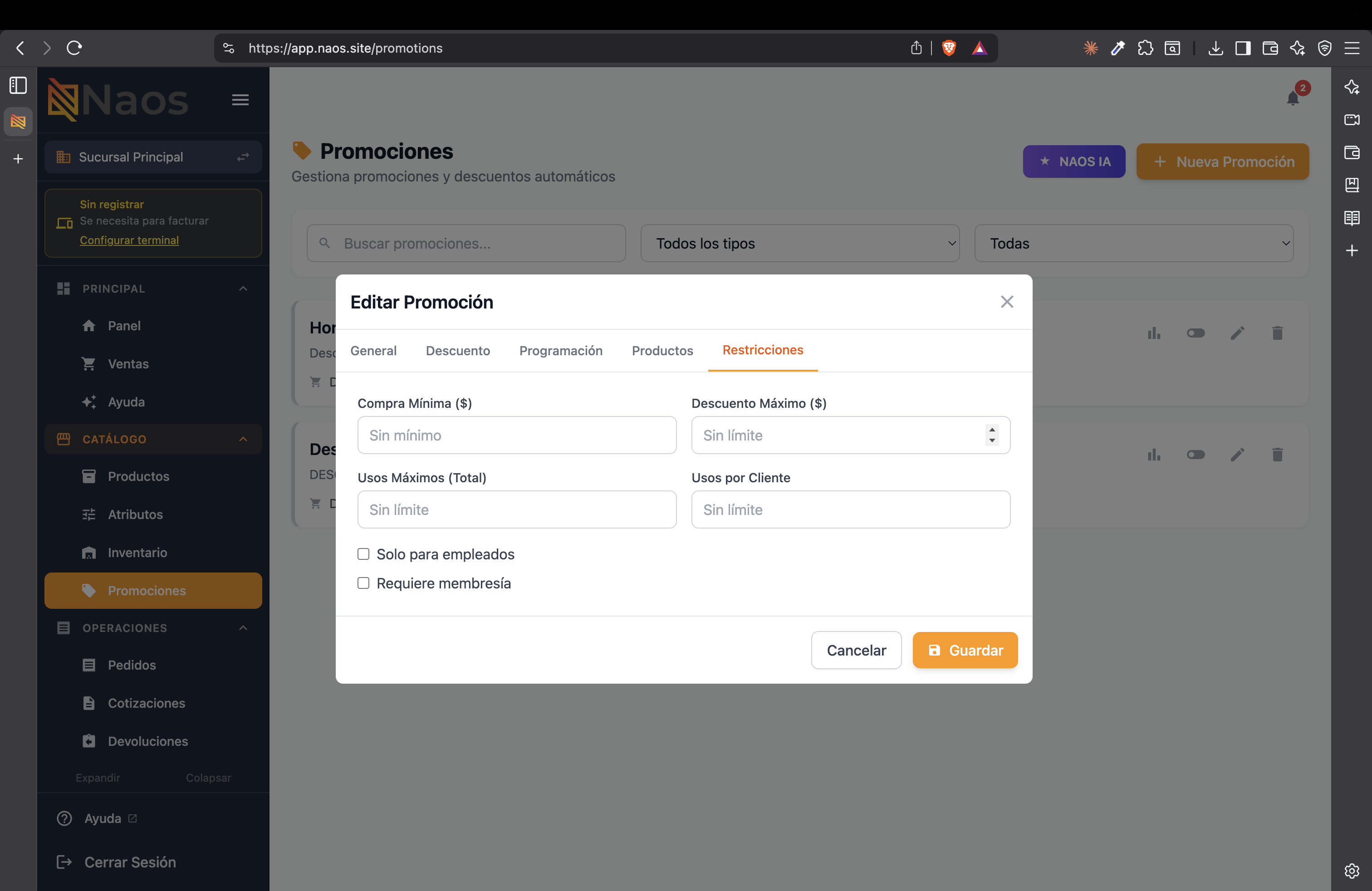
Restrictions Tab
Set usage limits: minimum purchase, maximum discount, total uses, uses per customer, and whether it’s exclusive to employees or requires membership.
- Press “Save” to activate the promotion.
Application at the Point of Sale
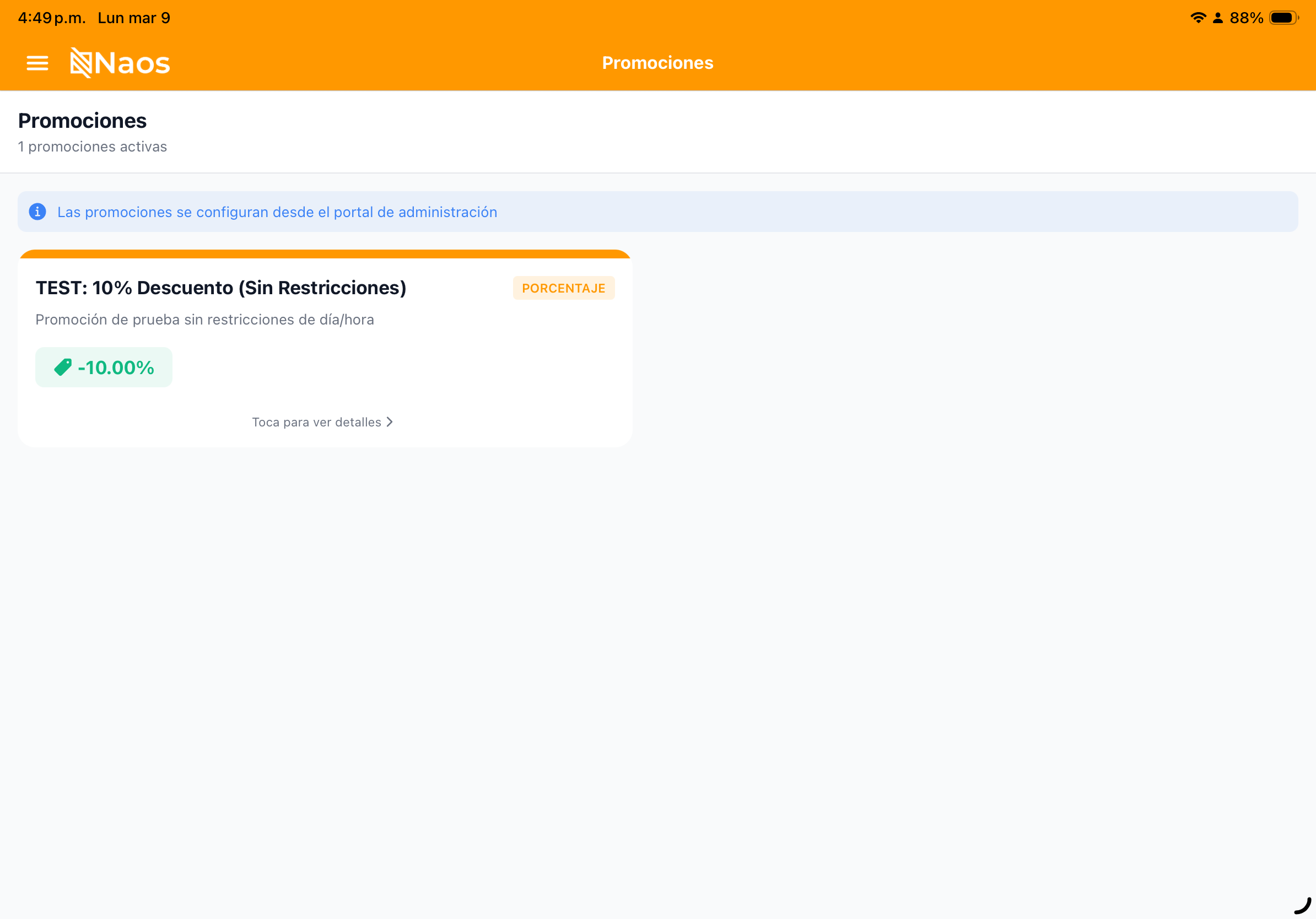
Promotions are applied automatically when conditions are met:
- The cashier adds products to the cart.
- NAOS evaluates active promotions in real time.
- If a condition is met, the discount appears reflected in the cart.
- The cashier can see which promotion was applied to each item.
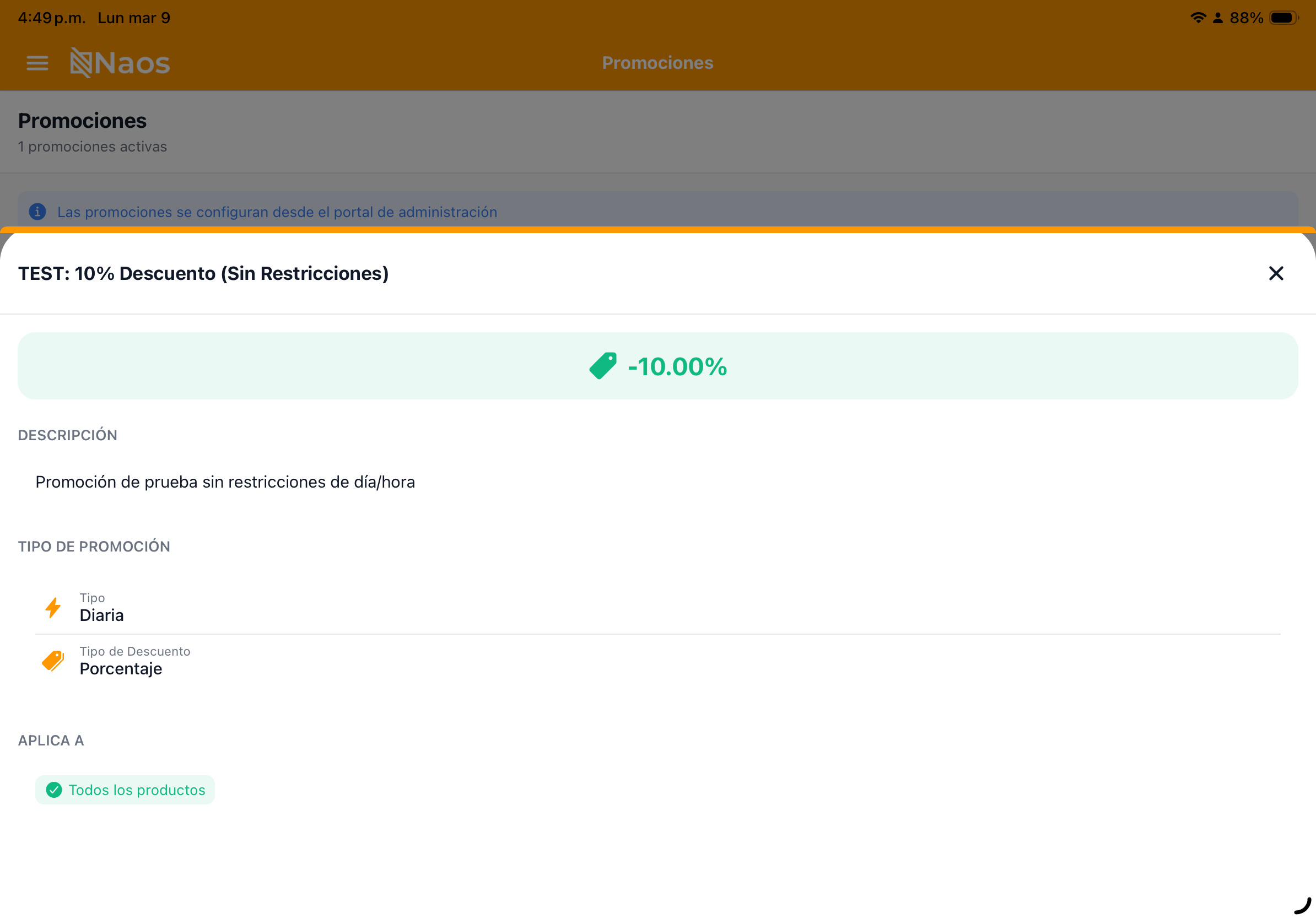
Promotion Management
In the promotions list you can:
- Activate / Deactivate a promotion without deleting it.
- Edit conditions or dates.
- Duplicate an existing promotion to create variations.
- Delete promotions you no longer need.
Special Discounts
In addition to promotions, NAOS supports regulated discounts:
| Discount | Percentage | Application |
|---|---|---|
| Retiree | 25% | On base price (before ITBMS) |
| Disability | 25% | On base price (before ITBMS) |
| Employee | Configurable | Per internal policy |
Need to segment promotions by customer type? See Customers and Loyalty